Curated Timer Workflows & Dashboards
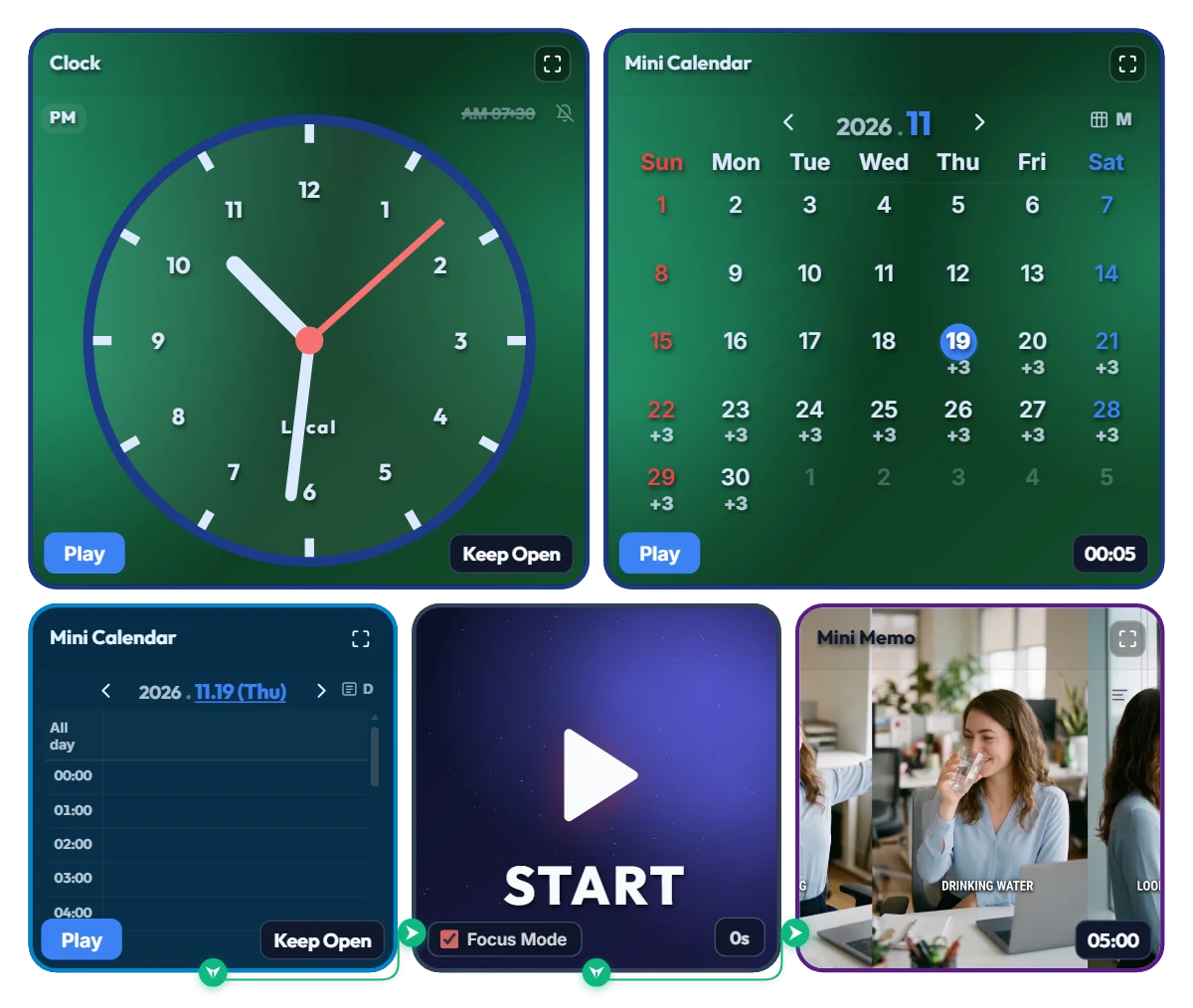
Escape the Chair Trap! Hands-Free "5-Minute Forced Break" Autopilot Board (11 AM · 2 PM · 4 PM)
Ever sit down at your desk "just to check one email," only to look up four hours later with a shrimp-curved spine and realize all you've consumed all day is a single iced coffee? Tiny corner notifications are way too easy to dismiss with a reflex click and a "just five more minutes"—until suddenly it's quitting time and you haven't stood up once. That's why I built this hands-free forced-break board: when the scheduled hour hits, it hijacks your entire monitor for 5 full minutes so you actually have to get up and reset. 📌 Why 3 Times a Day (11:00 · 14:00 · 16:00) Instead of Every 50 Minutes? I initially considered triggering a break every 50 minutes, but during real deep work or study sessions, having your whole screen locked 7–8 times a day breaks your flow and makes you close the tab. Instead, this schedule targets the three biggest slump checkpoints of the day: • 11:00 (Late-Morning Slump): Right before lunch when your neck starts creeping forward and your shoulders lock up. • 14:00 (Post-Lunch Food Coma): Peak brain fog when text on the screen starts blurring together. • 16:00 (Afternoon Battery Drain): The final stretch before wrapping up—when your eyes and lower back desperately need a reset. (Of course, if you prefer hourly breaks, just click any extra time slot in the bottom Mini Calendar to add it right in!) ⚙️ At-a-Glance Dual Dashboard Layout • Top Control Zone (Emerald Green): Features an analog clock for current time alongside a monthly Mini Calendar showing your 3 daily recurring breaks (+3) mapped out across the entire month. • Bottom Auto-Execution Zone: The daily Mini Calendar triggers the 11:00, 14:00, and 16:00 "Rest and recharge" blocks via node lines to the Mini Memo on the right. When the clock hits those hours, the board switches to a full-screen splash guide reminding you to [Stretch · Drink Water · Look Far Away]. • 5-Minute Visual Progress Bar: While the full-screen break is active, a sleek progress bar across the very top and a countdown in the top-right corner steadily shrink from 5:00—so you can pace your stretch and know exactly when you're back on duty. 💡 Quick Operating Tips Before You Start • No need to press the "Play" buttons! Leave the blue "Play" buttons at the bottom-left of the clock and calendars alone. Just keep this browser tab open—it runs as a 100% hands-free autopilot at 11:00, 14:00, and 16:00. • What does the big START button in the middle do? It switches the board into clean Focus Mode AND doubles as an instant preview button if you want to see the 5-minute full-screen break right now without waiting for the next scheduled hour. Don't want to wait the full 5 minutes during a test? Just click the red "Done" button in the bottom-left corner to jump right back to the main screen! • Tweak the alarm times or break length (default 5 min) to fit your routine, then bookmark this page—your custom schedule will be saved right where you left it. ❤️ Cheering on the spines and eyeballs of desk workers, freelancers, and students everywhere! If this board rescued you from your chair today, tap the heart button and let me know in the comments what time of day you lose track of time the worst! ✨
 Evander Vane
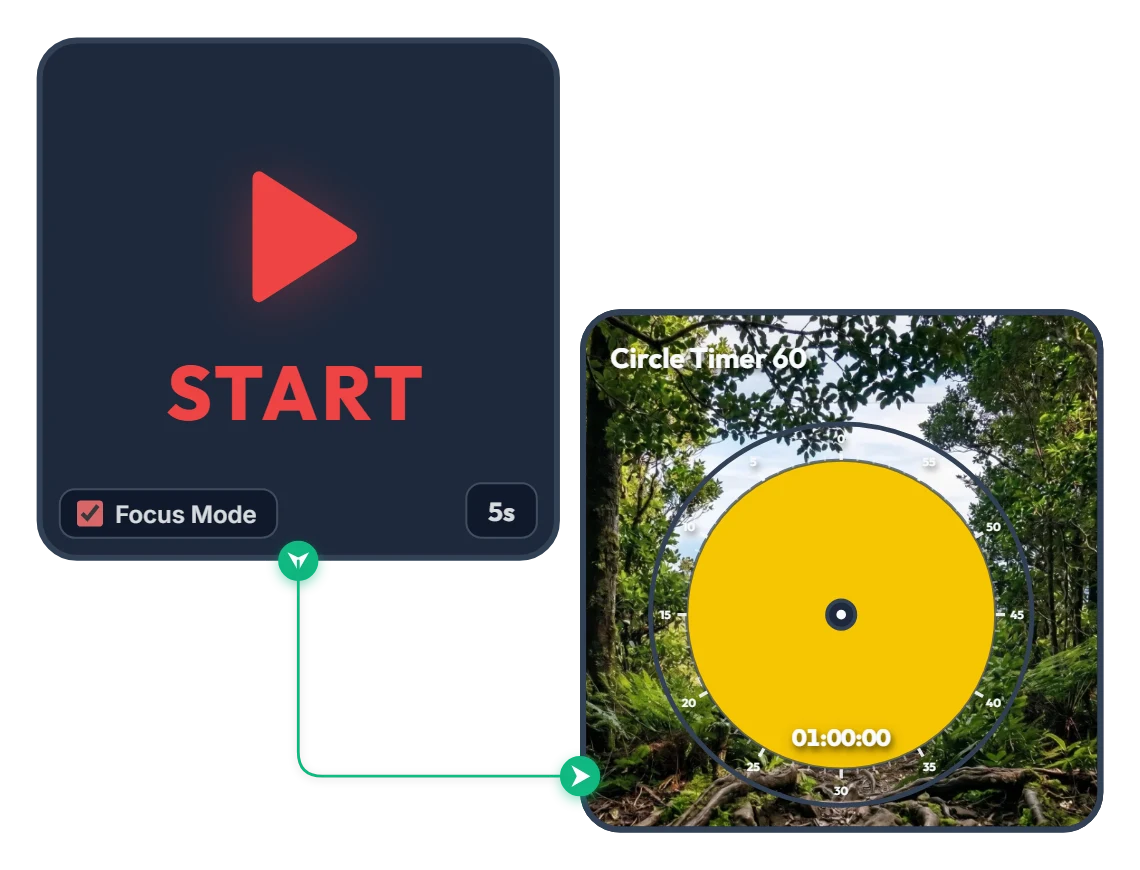
From Dense Woods to Wide-Open Skies! A 60-Minute Achievement Timer to Carry You Through the Hour
As the yellow disc shrinks and clears the dense forest, a victorious silhouette with arms raised high and a sweeping mountain range open up across your screen. Built with zero clutter—just a START widget and a 60-minute Circle Timer—this minimalist focus board helps you stay locked in until the finish line. When you press START, Focus Mode expands the timer to fill the board frame, guiding you steadily toward completing your full hour like a calm climb to the summit. 📌 Turn This On Whenever You Want to Finish Strong (Everyday Scenarios) • 1 Hour of Distraction-Free Deep Work (Office & Freelance) Put this on when tackling a major deliverable like a proposal, coding sprint, design layout, or video edit. Watching the yellow disc gradually fade and the horizon open up helps you resist distractions and claim a full, unbroken hour. • Breaking Through Today's Chapter or Practice Exam (Students) Ideal for working through dense textbook chapters or completing a full set of past exam questions. Just like emerging from thick woods onto an open ridge, you get a rewarding visual payoff at the end of a focused hour. • Miracle Morning 60-Minute Routine Start your morning grounded with reading, journaling, language practice, or meditation. The warm yellow glow and serene mountain scenery gently wake up your focus. • 1 Hour of Quiet Reading & Reflective Writing Silence phone notifications and message alerts for a full hour to immerse yourself deeply in a book or a piece of writing on the side of your monitor. ⚙️ How It Works & How to Customize Right on Screen Press START and after a 5-second breath-centering countdown (5s), Focus Mode activates—filling the board with the yellow 60-minute Circle Timer and starting the countdown. No complicated setup needed—just click directly on the board above to match your pace: • Change Prep Countdown: Click '5s' at the bottom right of the left START widget to adjust the pre-start pause anywhere from 0 to 59 seconds. • Adjust Focus Duration: Click the center of the right Circle Timer 60 widget to set any duration within 60 minutes (such as 45 or 50 minutes) that fits your goal. ❤️ If you found this helpful, tap the heart button and share how you used it in the comments—your tip could be a huge help to others!
 Amelia Miller
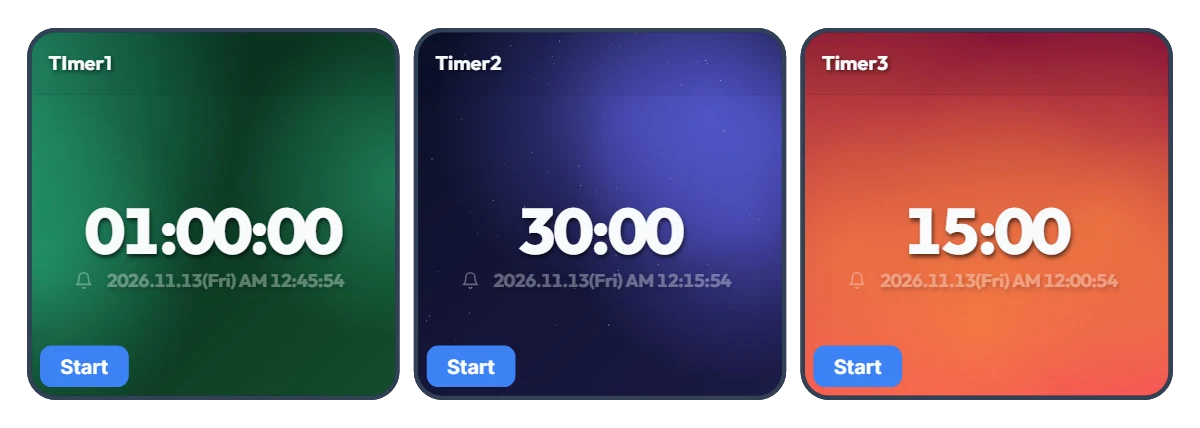
Tired of Resetting Your Timer Every Time You Switch Tasks? 3-Slot One-Click Preset Timer Board
Using just a single timer means constantly re-entering numbers every time you move on to a new task—and that small friction adds up fast. Most of us rely on a few specific time blocks throughout the day. This board places three Smart Timers side by side so you can pre-set your three most-used durations and launch any of them instantly with a single click. The default 1 hour, 30 minutes, and 15 minutes are just starting examples—whether you prefer 5, 30, and 45 minutes or 10 minutes, 20 minutes, and 2 hours, you can customize all three to fit your exact routine. Each timer also displays the exact clock time when it will finish, so you never have to do mental math. 📌 Preset Combinations to Try (Everyday Scenarios) • Work & Freelance Focus Rhythm (e.g., 50 min / 20 min / 10 min) Set three gears for your workday: 50 minutes for deep work, 20 minutes for emails and admin tasks, and 10 minutes for eye rest and stretching. Switch seamlessly with one click without breaking your momentum. • Study & Exam Prep Sessions (e.g., 100 min / 45 min / 15 min) Keep dedicated timers ready for full practice tests (100 min), video lectures or textbook chapters (45 min), and vocabulary or flashcard review (15 min) to keep your study routine effortless. • Kitchen & Household Multitasking (e.g., 40 min / 12 min / 3 min) Because all three timers run independently, you can run multiple countdowns at once. Keep an eye on a 40-minute oven roast, 12-minute pasta boiling, and a 3-minute tea steep all on one screen. • Home Workout & Stretching Flow (e.g., 30 min / 15 min / 5 min) Line up your cardio (30 min), core/strength work (15 min), and cool-down stretch (5 min) in advance so you don't have to touch your phone with sweaty hands mid-workout. • Kids' Daily Routine & Screen-Time Rules (e.g., 30 min / 20 min / 5 min) Pre-set timers for homework or reading (30 min), screen time (20 min), and toy clean-up (5 min). Seeing the large countdown and exact end time helps kids build healthy time-management habits on their own. ⚙️ How It Works & How to Set Your Own Times on Screen All three Smart Timers operate independently right as they appear on your screen: • Instant Start: Click the 'START' button at the bottom left of whichever timer you need to begin counting down immediately—with the exact finish time shown right below the digits. (You can also run two or three timers at the same time.) • Customize Your 3 Presets: Click directly on the center numbers ('01:00:00', '30:00', '15:00') of each timer to change them to your own three go-to durations. ❤️ If you found this helpful, tap the heart button and share how you used it in the comments—your tip could be a huge help to others!
Amelia Miller
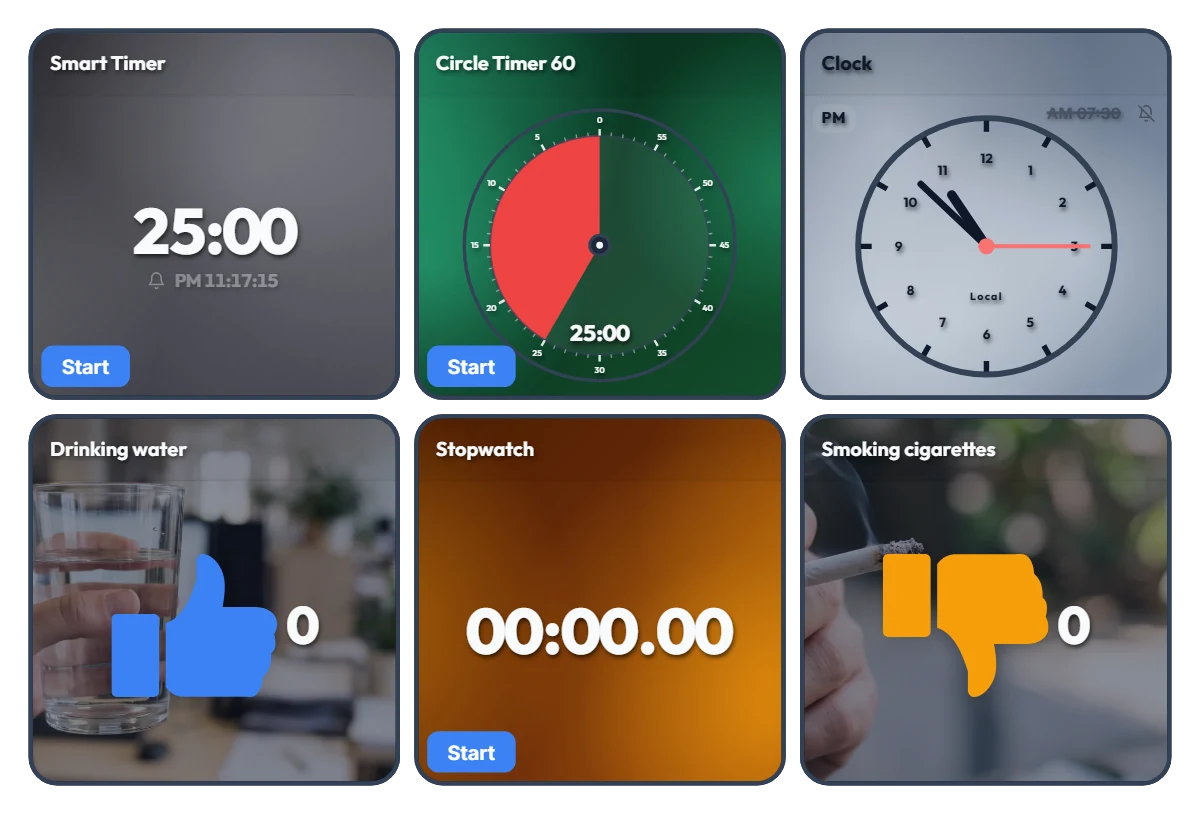
Track Work Hours, Water Intake & Cigarettes on One Screen! All-in-One Desk Dashboard
Tired of juggling separate timer tabs, stopwatch apps, and habit trackers while working or studying? Just keep this single dashboard open on the side of your monitor. This board is an "all-in-one desk control tower" featuring 6 independent tools on one screen—with no auto-linking between widgets. On the top row, timers and a clock keep your current flow and deadlines in check. On the bottom row, a stopwatch tracks your cumulative work hours while one-click counters let you intuitively log daily habits like drinking water (👍) and smoking cigarettes (👎). 📌 Everyday Scenarios Where This Shines • All-in-One Work Dashboard for Office & Remote Workers Measure your total daily work hours with the bottom stopwatch while checking your exact end time on the top Smart Timer. Log your water intake with the blue thumbs-up counter so you stay hydrated during deep work, and track cigarette counts with the orange counter to see your daily patterns at a glance. • Pure Focus Time + Wellness Tracker for Students & Freelancers Accumulate your actual, distraction-free study or work hours with the stopwatch, and use the Circle Timer to set strict time limits for practice tests or tasks. Tracking how many glasses of water you drink also helps keep your energy steady during long desk sessions. • Visual Habit Ledger: Good Habits (+) vs. Habits to Cut Back (-) With the Drinking water (👍) and Smoking cigarettes (👎) counters placed side by side, you get an immediate numeric contrast of your day. Seeing the numbers add up in real time makes it much easier to pace yourself consciously. • Desk Clock & Schedule Alarm in One Turn on the alarm in the top-right clock widget to stay on top of end-of-day wrap-ups, meetings, and break times without opening a separate alarm app. ⚙️ How Each Widget Works & How to Use Them Directly on Screen All 6 widgets operate independently right as they appear on your screen: • Smart Timer (Top Left): Click the bottom 'START' button to run it, or click the center numbers to set your desired duration. It displays the exact clock time when the timer will finish—great for managing deadlines. • Circle Timer 60 (Top Center): Click the bottom 'START' button to begin, and click the center of the circle to freely adjust the duration within 60 minutes. • Clock (Top Right): Click the bell icon (currently off) to toggle the alarm on or off, and click the alarm time ('AM 07:30') next to the bell to change when it rings. • Habit Counters – Drinking water / Smoking cigarettes (Bottom Left & Right): Click anywhere on the widget area to add +1. Hover your mouse over a widget to reveal a '-1' button in the bottom-left corner (handy for accidental clicks) and a 'Reset' button in the bottom-right corner. • Stopwatch (Bottom Center): Click the bottom 'START' button to freely track your total work hours or pure study time for the day. ❤️ If you found this helpful, tap the heart button and share how you used it in the comments—your tip could be a huge help to others!
Amelia Miller
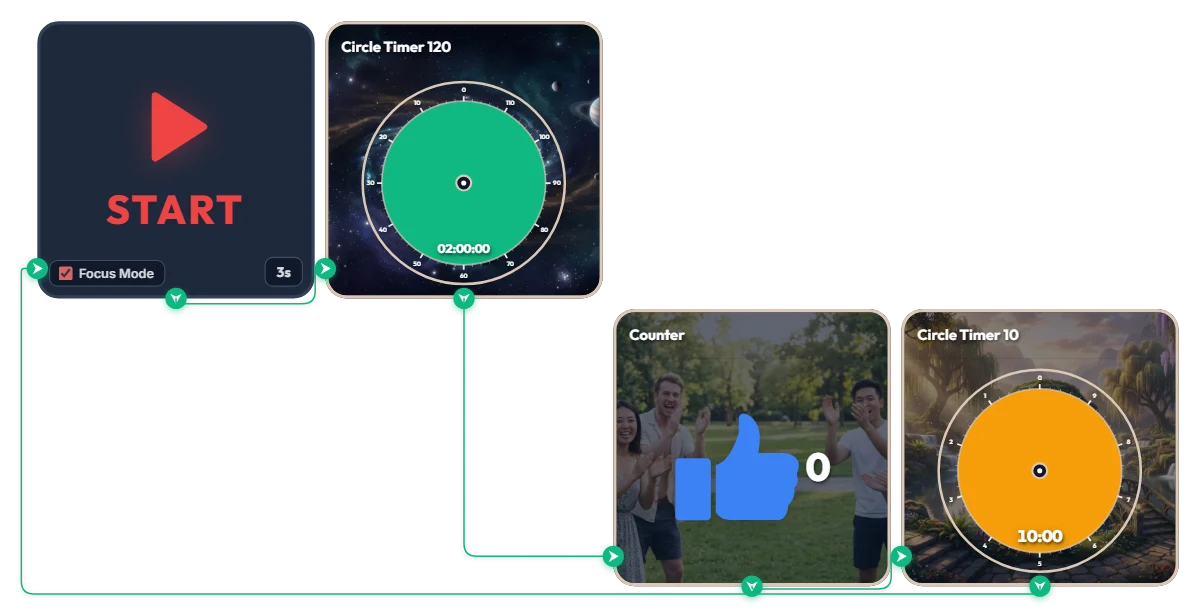
Want 2 Full Hours of Uninterrupted Deep Focus? 120-Min Deep Work + 10-Min Break Auto-Loop Timer
Tackling a complex project or long study session and want to dive deep for two full hours without breaking your flow? This automated loop timer is built for sustained, long-haul deep work. When you hit 'START', a 3-second countdown triggers Focus Mode—expanding only the active widget to fill the board frame while hiding the rest. It runs a seamless infinite loop: 120 minutes of focus (green) → achievement counter (+1) → 10 minutes of rest (orange), then automatically starts the next round. Because it doesn't force your browser into full screen, it sits cleanly alongside your work window or on a second monitor. 📌 Everyday Scenarios Where This Shines • Coding, Design & Video Editing (Deep Work) For complex tasks like programming, 3D rendering, or video editing that demand long stretches of uninterrupted momentum, the green 120-minute gauge keeps you locked in without mid-flow interruptions. • Practice Exams & Timed Mock Tests Simulate real test conditions for 2-hour certification exams, language tests, or 100-minute university entrance sections, followed by an exact 10-minute break to review your score. • Thesis Writing, Research & Deep Reading When your train of thought matters most, silence notifications for two solid hours and immerse yourself completely in a single topic or textbook. • Weekend & Holiday Study Marathons (Track Your Streak) Every time you complete a 120-minute block, the blue thumbs-up counter automatically ticks up by 1—giving you visible proof of how many sessions you crushed today. ⚙️ How It Works & How to Customize Right on Screen Press START and after 3 seconds, Focus Mode activates and fills the board with the green 120-minute timer. Once time is up, it logs +1 on the achievement counter and automatically switches to the orange 10-minute break timer—looping right back into the next 120-minute session when your break ends. No complicated setup needed—just click directly on the board above to match your personal work rhythm: • Change Prep Countdown: Click '3s' at the bottom right of the START widget to adjust the start delay anywhere from 0 to 59 seconds. • Adjust Focus Duration: Click the center of the green Circle Timer 120 widget to set any duration within 120 minutes (such as 90 or 100 minutes) that fits your stamina. • Adjust Break Duration: Click the center of the orange Circle Timer 10 widget to change your break to any duration within 10 minutes (such as 5 or 8 minutes). ❤️ If you found this helpful, tap the heart button and share how you used it in the comments—your tip could be a huge help to others!
Amelia Miller
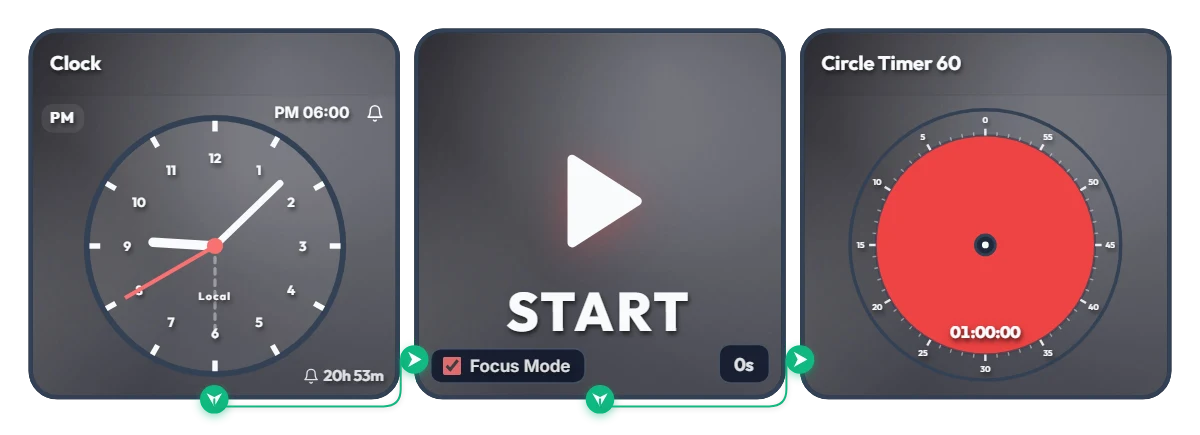
Keep Saying "I'll Start at 6 PM" and Putting It Off? Auto-Start 1-Hour Focus Timer
Ever tell yourself "I'll start right at 6:00 PM," only to lose an hour scrolling on your phone? Stop relying on willpower and let your screen flip the switch for you. This board is a scheduled automation routine. The moment your set time arrives (6:00 PM by default), Focus Mode cleanly hides the other widgets and expands the 60-minute circle timer to fill the entire board frame—starting the countdown immediately. Because it doesn't force your browser into full screen, it's ideal for keeping alongside your work window or on a second monitor. 📌 Everyday Scenarios Where This Shines • After-Work Evening Routine (PM 06:00 – 07:00) Beat post-work sluggishness. At 6:00 PM sharp, your board transforms into a bold red 60-minute timer, nudging you straight into reading, language learning, or a home workout without procrastinating. • Work-From-Home Morning Kickoff (AM 09:00) Struggling to transition from the couch to your desk? Change the alarm to 9:00 AM so your screen automatically switches into focus view and protects your first golden hour of deep work. • Evening Study & Exam Prep (PM 08:00) Overcome post-dinner fatigue with a clear visual rule: when the clock hits 8:00 PM, commit to one distraction-free hour at your desk. • 1-Hour Deadline Sprint Set the alarm one hour before a report or assignment is due. Watching the red visual gauge shrink keeps your focus locked in until the final second. ⚙️ How It Works & How to Customize Right on Screen When the Clock hits the scheduled time, the START widget activates Focus Mode—hiding the other widgets so the 60-minute circle timer fills the board and begins counting down right away. No complicated setup needed—just click directly on the board above to tailor it to your routine: • Change Alarm Time: Click 'PM 06:00' at the top right of the left Clock widget to set your preferred start time. • Set Prep Countdown: Click '0s' at the bottom right of the middle START widget to add a buffer delay of up to 59 seconds (great if you need a moment to sit down and get ready after the alarm goes off!). • Adjust Timer Duration: Click the center of the right Circle Timer widget to set any duration within 60 minutes that matches your focus stamina. ❤️ If you found this helpful, tap the heart button and share how you used it in the comments—your tip could be a huge help to others!
Amelia Miller