Curated Timer Workflows & Dashboards
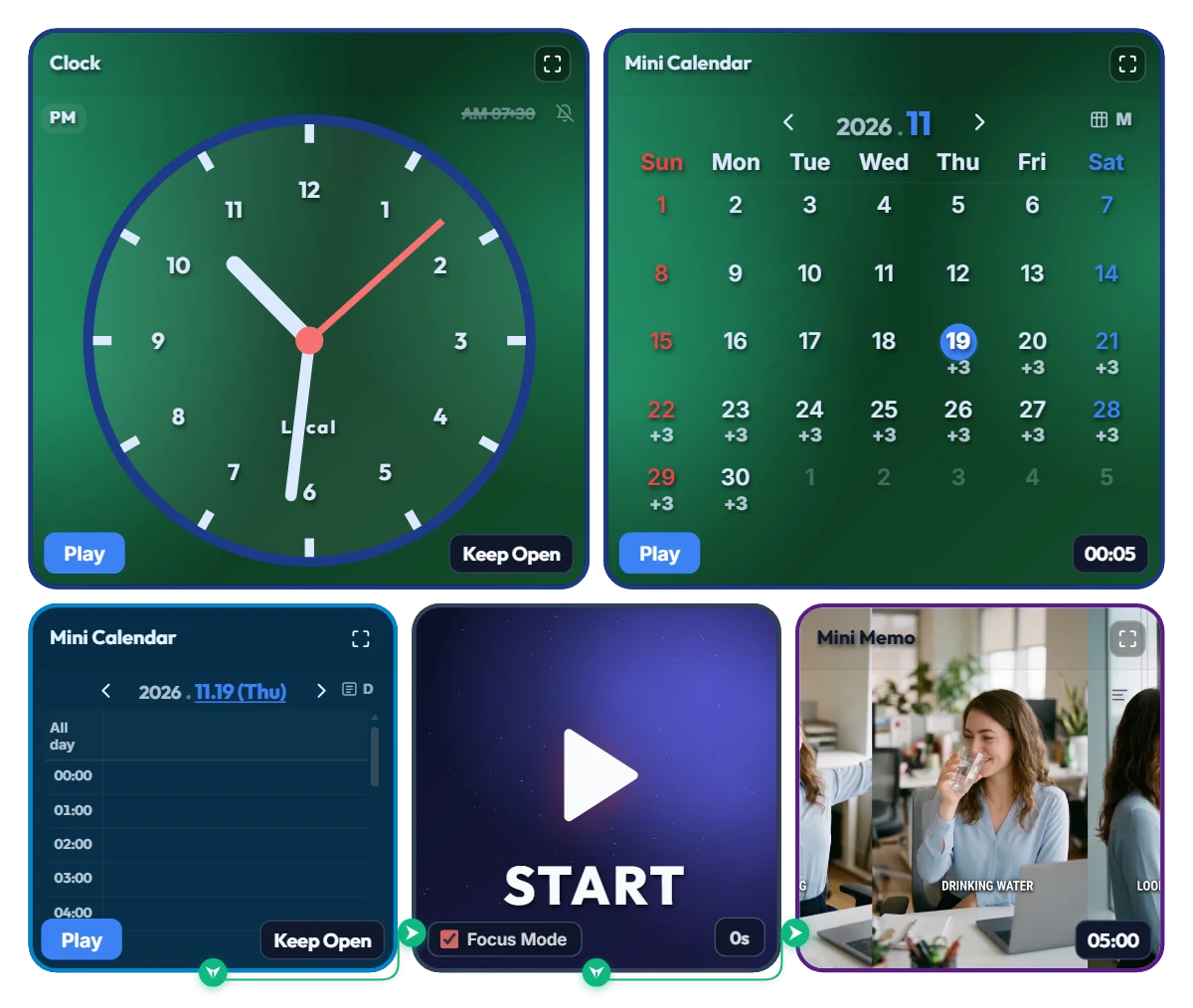
Escape the Chair Trap! Hands-Free "5-Minute Forced Break" Autopilot Board (11 AM · 2 PM · 4 PM)
Ever sit down at your desk "just to check one email," only to look up four hours later with a shrimp-curved spine and realize all you've consumed all day is a single iced coffee? Tiny corner notifications are way too easy to dismiss with a reflex click and a "just five more minutes"—until suddenly it's quitting time and you haven't stood up once. That's why I built this hands-free forced-break board: when the scheduled hour hits, it hijacks your entire monitor for 5 full minutes so you actually have to get up and reset. 📌 Why 3 Times a Day (11:00 · 14:00 · 16:00) Instead of Every 50 Minutes? I initially considered triggering a break every 50 minutes, but during real deep work or study sessions, having your whole screen locked 7–8 times a day breaks your flow and makes you close the tab. Instead, this schedule targets the three biggest slump checkpoints of the day: • 11:00 (Late-Morning Slump): Right before lunch when your neck starts creeping forward and your shoulders lock up. • 14:00 (Post-Lunch Food Coma): Peak brain fog when text on the screen starts blurring together. • 16:00 (Afternoon Battery Drain): The final stretch before wrapping up—when your eyes and lower back desperately need a reset. (Of course, if you prefer hourly breaks, just click any extra time slot in the bottom Mini Calendar to add it right in!) ⚙️ At-a-Glance Dual Dashboard Layout • Top Control Zone (Emerald Green): Features an analog clock for current time alongside a monthly Mini Calendar showing your 3 daily recurring breaks (+3) mapped out across the entire month. • Bottom Auto-Execution Zone: The daily Mini Calendar triggers the 11:00, 14:00, and 16:00 "Rest and recharge" blocks via node lines to the Mini Memo on the right. When the clock hits those hours, the board switches to a full-screen splash guide reminding you to [Stretch · Drink Water · Look Far Away]. • 5-Minute Visual Progress Bar: While the full-screen break is active, a sleek progress bar across the very top and a countdown in the top-right corner steadily shrink from 5:00—so you can pace your stretch and know exactly when you're back on duty. 💡 Quick Operating Tips Before You Start • No need to press the "Play" buttons! Leave the blue "Play" buttons at the bottom-left of the clock and calendars alone. Just keep this browser tab open—it runs as a 100% hands-free autopilot at 11:00, 14:00, and 16:00. • What does the big START button in the middle do? It switches the board into clean Focus Mode AND doubles as an instant preview button if you want to see the 5-minute full-screen break right now without waiting for the next scheduled hour. Don't want to wait the full 5 minutes during a test? Just click the red "Done" button in the bottom-left corner to jump right back to the main screen! • Tweak the alarm times or break length (default 5 min) to fit your routine, then bookmark this page—your custom schedule will be saved right where you left it. ❤️ Cheering on the spines and eyeballs of desk workers, freelancers, and students everywhere! If this board rescued you from your chair today, tap the heart button and let me know in the comments what time of day you lose track of time the worst! ✨
 Evander Vane
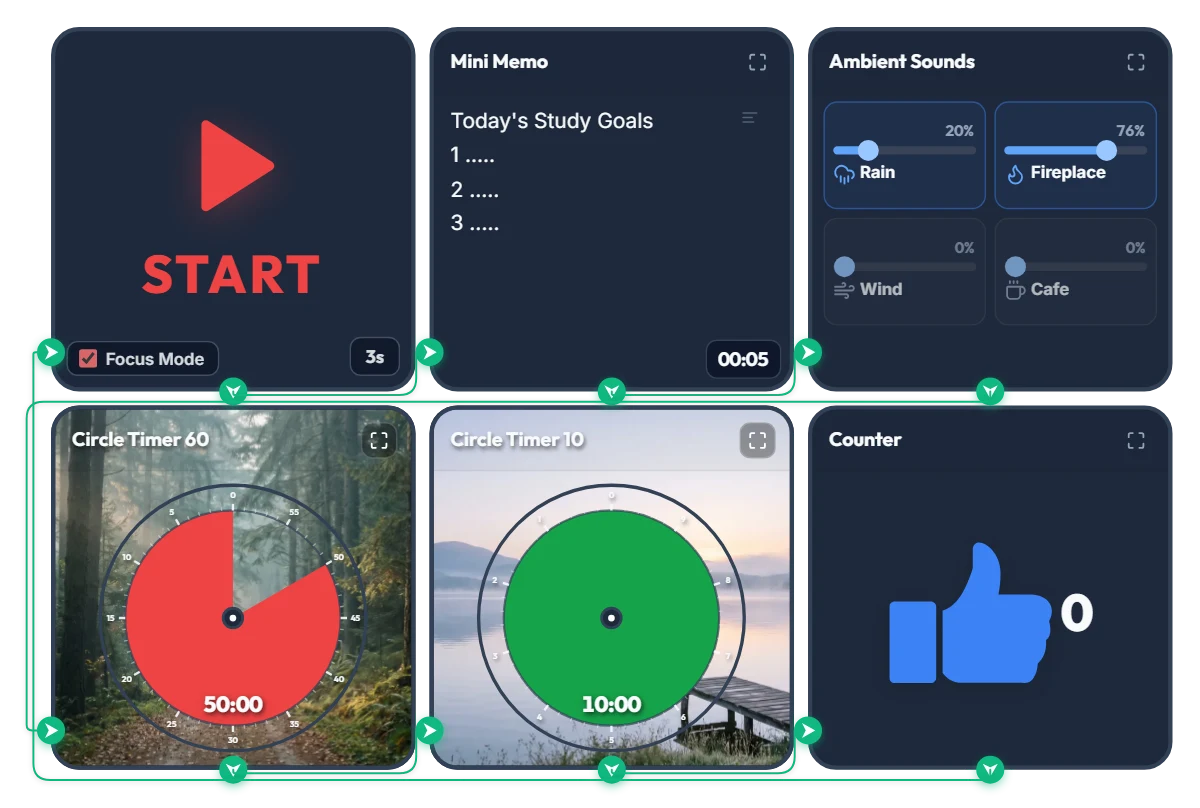
Rainy Forest Cabin Study Timer: Auto Rain & Fireplace ASMR + 50/10 Focus Loop
Tired of juggling a white-noise tab, a separate timer app, and a notepad just to start studying? Hit START once and this board automatically displays your study goals, launches a cozy rain-and-fireplace soundscape, and runs an infinite 50-minute focus / 10-minute break cycle in full-screen Focus Mode. 📌 Why a Misty Forest Trail & Calm Lakeside Background? According to Attention Restoration Theory (ART) in environmental psychology, the directed attention we use for problem-solving and deep reading fatigues rapidly after about 45–50 minutes. When you glance up to check your remaining time, seeing natural scenery like deep forest greens and calm water triggers "soft fascination"—allowing your brain and eyes to rest without breaking your study flow. As the red disc shrinks during your 50-minute session, a quiet forest trail gradually opens up; during your 10-minute break, a green disc reveals a peaceful lakeside pier to help your mind reset. ⚙️ How the 5-Step Automatic Study Loop Works 1. 5-Second Goal Splash: Hitting START enters Focus Mode and expands the Mini Memo full-screen for 5 seconds so your top 3 study goals lock into focus right before the clock starts. 2. Continuous Rain & Fireplace ASMR: A gentle mix of rain (20%) and crackling fireplace (76%) starts automatically and stays playing seamlessly across both study and break intervals so your focus is never jarred by sudden silence. 3. 50-Minute Forest Focus Disc: Track your remaining study block at a glance as the red disc counts down clockwise. 4. 10-Minute Lakeside Break Disc: Automatically switches to a 10-minute green break timer when your session finishes—step back, stretch, and rest your eyes. 5. Auto Session Counter (+1) & Infinite Loop: Every completed 50/10 block ticks the counter up by +1 and loops right back into your next study round. 💡 Quick Tips to Make It Your Own Study Space • Click directly on the "1. ....." lines inside the Mini Memo on screen to type your top 3 subjects or tasks for today. • Feel free to adjust the focus/break durations (50m/10m) and ambient sound sliders to fit your pace—just bookmark this page afterward and your custom settings will be saved right where you left them! ❤️ Cheering on everyone putting in the hours at their desk today! If this board helped you stay in the zone, tap the heart button and share your favorite study ratio or ASMR sound mix in the comments! ✨
 Amelia Miller
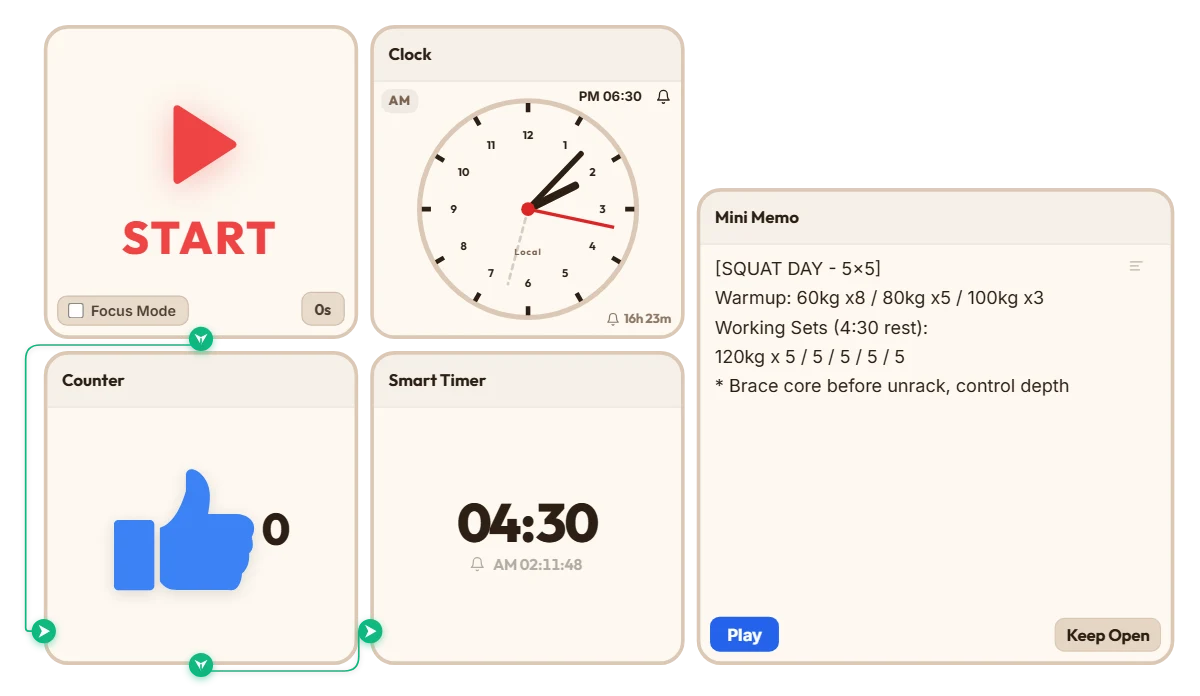
Heavy Squat Rest & Set Tracker (4:30 Rest + Auto Set Counter)
Whenever I do heavy 5x5 squats, I always run into the same annoying problem—by set three or four, brain fog hits hard. I either lose track of what set I'm actually on, or I unlock my phone to set a timer, get distracted, and suddenly realize I've been resting for eight minutes. I was looking for a clean, no-nonsense timer I could just leave open on my screen without downloading another bloated fitness app, and stumbled across this site. Connecting the counter and timer together turned out to be way easier than I expected. Put this board together before my leg session and tried it out—it actually works really well. Just hitting START once after racking the bar automatically ticks my set count up and starts my 4:30 rest countdown, with my warmup and working weights sitting right above it in the memo. Definitely going to keep using this setup for my heavy lifting days. If you train at home or need long rest intervals between heavy sets, feel free to grab this board and just tweak the rest time to fit your routine.
 Bradley Han
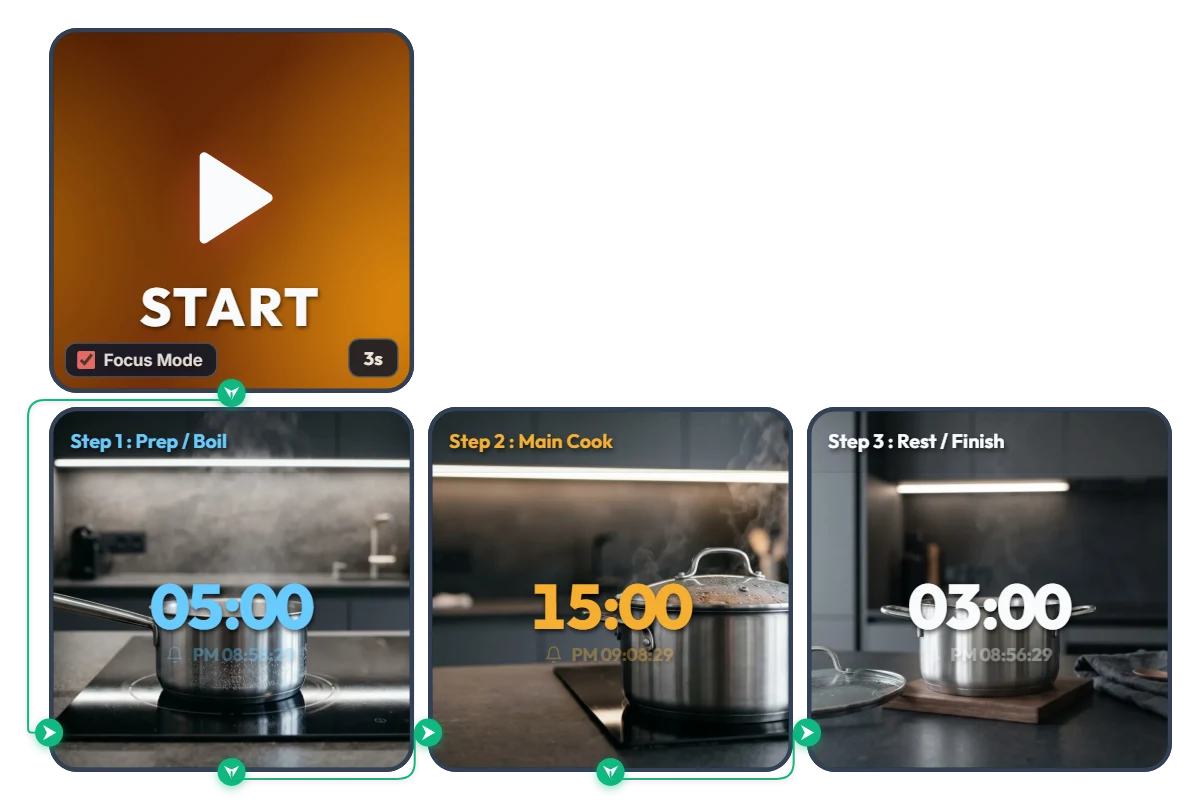
Tired of Resetting Your Timer with Wet Hands? One-Tap 3-Step Sequential Cooking Timer
Skip the hassle of tapping multiple hood timers like a busy restaurant line or wiping wet hands just to reset a single kitchen timer between steps. This 3-step sequential cooking board links your entire cooking flow automatically from start to finish. Rather than locking you into a single dish, it lets you pre-set your own rhythm—[Step 1: Prep / Boil → Step 2: Main Cook → Step 3: Rest / Finish]—and press START just once. Focus Mode fills your screen with calm, modern kitchen visuals and large color-coded digits (sky blue → warm amber → crisp white), so you can tell which stage you're in at a glance from across the kitchen. • Step 1 – Prep / Boil (05:00 / Sky Blue): Starts your first countdown against a serene view of clear water coming to a gentle simmer in a stainless steel saucepan. • Step 2 – Main Cook (15:00 / Warm Amber): Once the first alarm chimes, the board switches automatically with zero screen-tapping needed—transitioning to a covered pot steaming steadily as your dish cooks through. • Step 3 – Rest / Finish (03:00 / Crisp White): When main cooking finishes, it moves to the final resting stage—a quiet pot off the heat on a walnut trivet—so your meal finishes with the right texture and flavor. 📌 Tailor the 3-Step Flow to Whatever You're Cooking Today (Everyday Scenarios) • Pasta & Noodle Dishes Set [Step 1: Bring water to a boil] → [Step 2: Boil pasta to al dente] → [Step 3: Toss and finish in the sauce] so your noodles never turn mushy or undercooked. • Steak & Meat Searing + Resting Map out [Step 1: Preheat the skillet] → [Step 2: Sear and baste to temp] → [Step 3: Rest off the heat to lock in juices] with clean, hands-free transitions. • Risotto, Quinoa & Simmered Stews Link [Step 1: Bring broth to a boil] → [Step 2: Simmer gently on low] → [Step 3: Turn off heat and steam covered] in one uninterrupted flow. • Pour-Over Coffee, Loose-Leaf Tea & Home Baking Ideal for delicate home-café routines like [Step 1: Heat water & bloom] → [Step 2: Brew or bake] → [Step 3: Cool slightly before serving]. ⚙️ How It Works & How to Customize Times for Your Recipe Press START and after a 3-second prep countdown (3s), Focus Mode turns on and runs Step 1 → Step 2 → Step 3 automatically. An alarm sounds at the end of every stage, and the exact completion time is shown right below the countdown digits. No complicated menus needed—click directly on the board above to fit today's recipe: • Set Each Cooking Stage Duration: Click the center time digits ('05:00', '15:00', '03:00') on each of the three Smart Timers to enter any hours, minutes, or seconds before you start cooking. • Change Start Prep Delay: Click '3s' at the bottom right of the left START widget to adjust the pre-start buffer anywhere from 0 to 59 seconds. ❤️ If this made your time in the kitchen smoother, tap the heart button and share in the comments what dish you cooked with it—your timing setup could inspire someone else's dinner!
Amelia Miller
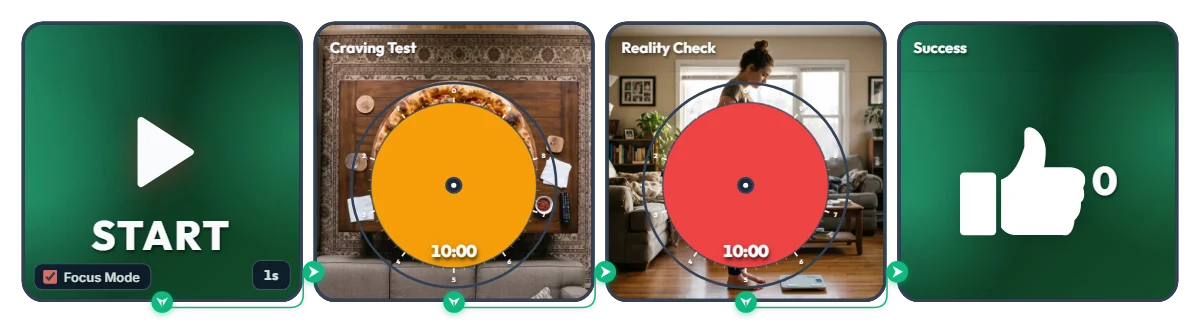
Hold Off for Just 20 Minutes Before Hitting Checkout at 11 PM! "Pizza Craving vs. Morning Scale" Snack Defense Timer
Nobody is asking you to give up late-night snacks forever—just survive 20 minutes before tapping "Place Order" on that delivery app! (Fun fact: fake midnight hunger actually vanishes after 15–20 minutes.) Built with a traffic-light color flow—Green (Safe) → Orange (Pure Temptation) → Red (Reality Check) → Green (Victory)—this one-shot 20-minute mission board tests your willpower. Hit START and Focus Mode fills your screen with a giant pizza and tomorrow morning's plot twist. • Stage 1 – The Temptation (Craving Test / 10 min): As the orange disc shrinks clockwise, a hot, freshly baked pepperoni pizza on a living room table slowly reveals itself slice by slice. ("Order now and it's at your door in 30 minutes… sure you can resist?") • Stage 2 – The Wake-Up Call (Reality Check / 10 min): Survive the first 10 minutes of internal debate and the red warning disc takes over—gradually uncovering tomorrow morning's reality: clutching your stomach while staring down at the bathroom scale. ("Could've been 0 calories if you closed the app…!") • The Reward (Success): Make it past the 20-minute danger zone and the thumbs-up (👍) counter ticks up +1 to celebrate your late-night victory. Before you even press start, click the center of either Circle Timer on screen and nudge the colored disc slightly—you can sneak a preview of that pizza slice and tomorrow's scale ending… 📌 Turn This On Whenever Midnight Munchies Strike (Everyday Scenarios) • 11 PM Delivery App Scroll Right Before Checkout Launch this as your final firewall before hitting pay on Uber Eats or DoorDash. Once you watch the full pizza appear—followed by the scale—closing the app for a glass of water suddenly feels effortless. • Binge-Watching Shows & Aimlessly Opening the Fridge When you're not actually hungry and just want to munch out of boredom, keep this running on the side of your monitor to outlast the 20-minute craving peak. • Mid-Diet "Should I Make Tonight a Cheat Night?" Inner Battle Seeing temptation (orange) and regret (red) back-to-back acts as an instant visual brake against impulse ordering. • Late-Night Cold Drink Cravings Calling for Takeout Sides Stack up those green thumbs-up (👍) wins one night at a time and wake up feeling light instead of bloated. ⚙️ How It Works & How to Customize Right on Screen Press START and after a 1-second buffer (1s), Focus Mode activates and runs the 20-minute mission in order: [Craving Test (10 min) → Reality Check (10 min) → Success Counter (+1)]. No complicated setup needed—click directly on the board above to match your willpower threshold: • Adjust Hold Time & Peek at the Ending: Click the center of the two middle Circle Timers (Craving Test, Reality Check) to shorten either round within 10 minutes (like 5 minutes each for a quick 10-minute test) and preview the image hiding behind the disc. • Change Start Delay: Click '1s' at the bottom right of the left START widget to set a pre-start countdown anywhere from 0 to 59 seconds. • Edit or Reset Your Win Counter: Hover your mouse over the right Success widget to reveal a '-1' button in the bottom-left corner (for accidental clicks) and a 'Reset' button in the bottom-right corner. ❤️ If you survived the 20 minutes, tap the heart button and tell us in the comments what late-night craving you defeated—your win might save someone else's diet tonight!
Evander Vane
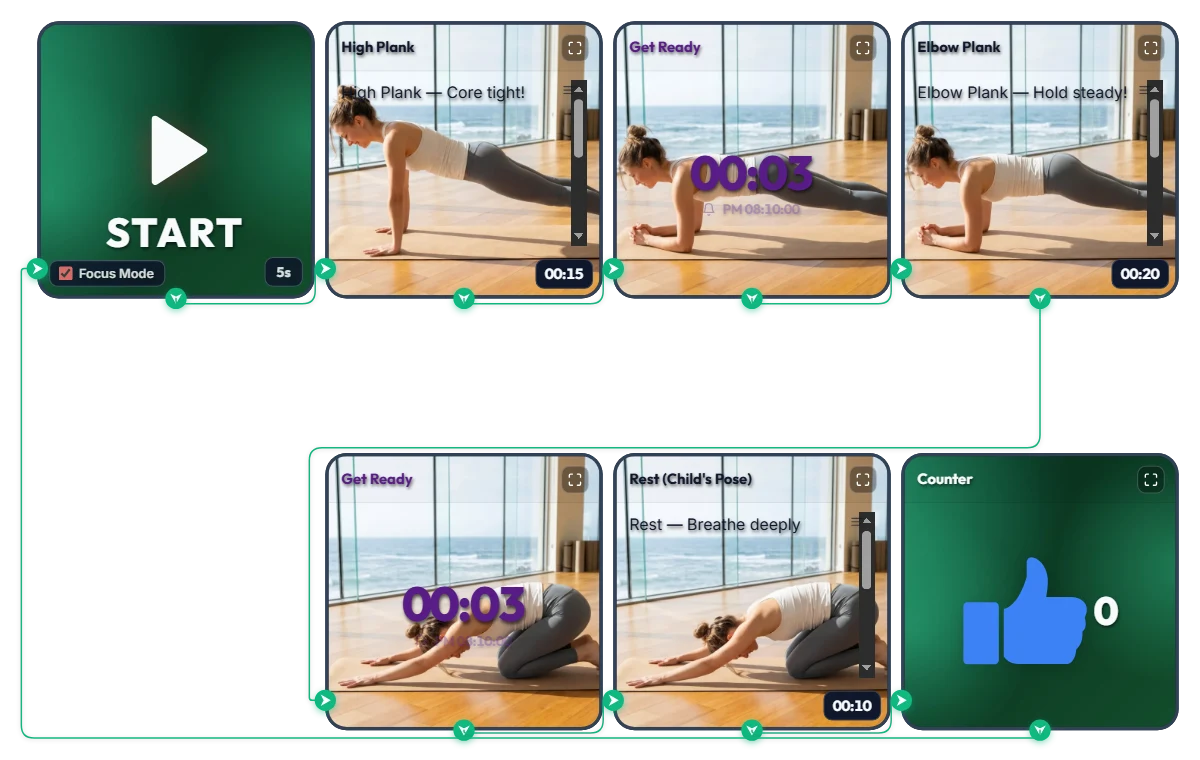
3-Minute Daily Core Routine! Customizable "High Plank → Elbow Plank" Infinite Loop Workout Timer
A shrinking top progress bar visually tracks your hold time while 3-second transition alarms cue every pose change—so you can follow along effortlessly face-down on your mat. This infinite-loop home workout board pairs High Plank (15s) → Elbow Plank (20s) → Child's Pose Rest (10s) into one quick set, automatically adding +1 to your thumbs-up (👍) counter every time you finish a round. Hit START and Focus Mode expands the exercise photos and form cues across the screen like your own personal trainer. The default times are set to an approachable beginner pace. Feel free to increase or decrease each interval to match your core strength and fitness level! 📌 Adapt It to Your Fitness Level & Schedule (Everyday Scenarios) • Beginner & Starter Core Routine (Default: 15s / 20s / 10s) New to planks? Start with the default settings and aim to complete 3 sets (about 2.5 minutes total). If holding feels tough at first, shorten the intervals to 10 seconds and focus on locking in proper form. • Intermediate & Advanced Core Challenge (e.g., 40s / 60s / 15s) If the starter pace feels too easy, bump each hold up to 30, 45, or 60+ seconds. Thanks to the 3-second transition alarm at the end of every move, you can switch positions smoothly without craning your neck to look at the screen. • 3-Minute Desk Break Refresh for Office Workers & Students Whenever your lower back and shoulders feel stiff from sitting too long, drop onto your mat for 3 to 4 quick sets. Watching the blue top progress bar shrink keeps you focused and recharges your energy fast. ⚙️ How It Works & How to Customize Durations Right on Screen Press START and after a 5-second setup countdown (5s), Focus Mode turns on and loops automatically through: [High Plank (15s) → Transition Alarm (3s) → Elbow Plank (20s) → Rest Alarm (3s) → Child's Pose Rest (10s) → Set Counter (+1)]. No complicated menus needed—click directly on the board above to tailor the difficulty: • Adjust Hold & Rest Times: Click the time display ('00:15', '00:20', '00:10') in the bottom-right corner of each of the 3 bottom exercise widgets (High Plank, Elbow Plank, Rest) to increase or decrease hours, minutes, or seconds. • Change Start Prep Time: Click '5s' at the bottom right of the left START widget to set anywhere from 0 to 59 seconds to get down into position. • Change Transition Alarm Duration: Click the center numbers ('00:03') on the two top-middle 'Get Ready' Smart Timers to adjust the buffer time between moves. • Edit or Reset the Set Counter: Hover your mouse over the top-right Counter widget to reveal a '-1' button in the bottom-left corner and a 'Reset' button in the bottom-right corner. ❤️ If you found this helpful, tap the heart button and let us know in the comments how many sets you crushed—your streak will motivate others!
Amelia Miller
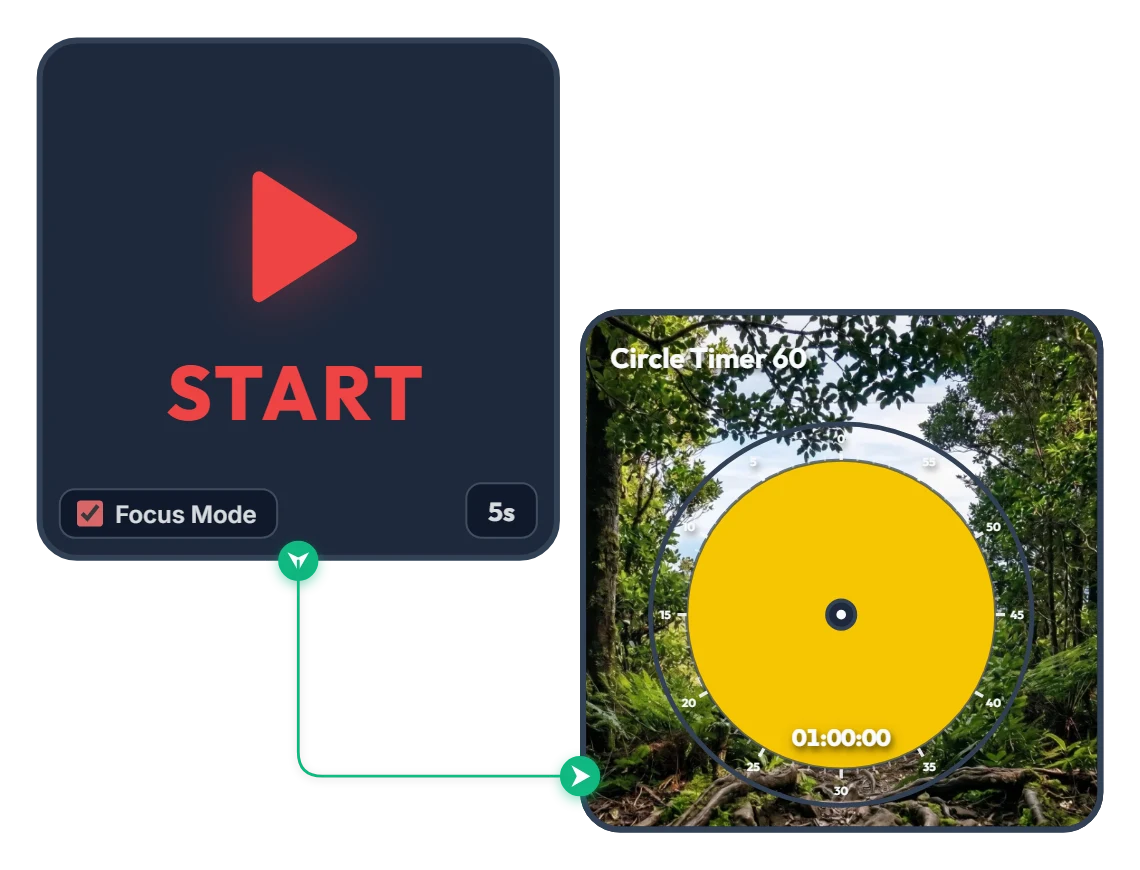
From Dense Woods to Wide-Open Skies! A 60-Minute Achievement Timer to Carry You Through the Hour
As the yellow disc shrinks and clears the dense forest, a victorious silhouette with arms raised high and a sweeping mountain range open up across your screen. Built with zero clutter—just a START widget and a 60-minute Circle Timer—this minimalist focus board helps you stay locked in until the finish line. When you press START, Focus Mode expands the timer to fill the board frame, guiding you steadily toward completing your full hour like a calm climb to the summit. 📌 Turn This On Whenever You Want to Finish Strong (Everyday Scenarios) • 1 Hour of Distraction-Free Deep Work (Office & Freelance) Put this on when tackling a major deliverable like a proposal, coding sprint, design layout, or video edit. Watching the yellow disc gradually fade and the horizon open up helps you resist distractions and claim a full, unbroken hour. • Breaking Through Today's Chapter or Practice Exam (Students) Ideal for working through dense textbook chapters or completing a full set of past exam questions. Just like emerging from thick woods onto an open ridge, you get a rewarding visual payoff at the end of a focused hour. • Miracle Morning 60-Minute Routine Start your morning grounded with reading, journaling, language practice, or meditation. The warm yellow glow and serene mountain scenery gently wake up your focus. • 1 Hour of Quiet Reading & Reflective Writing Silence phone notifications and message alerts for a full hour to immerse yourself deeply in a book or a piece of writing on the side of your monitor. ⚙️ How It Works & How to Customize Right on Screen Press START and after a 5-second breath-centering countdown (5s), Focus Mode activates—filling the board with the yellow 60-minute Circle Timer and starting the countdown. No complicated setup needed—just click directly on the board above to match your pace: • Change Prep Countdown: Click '5s' at the bottom right of the left START widget to adjust the pre-start pause anywhere from 0 to 59 seconds. • Adjust Focus Duration: Click the center of the right Circle Timer 60 widget to set any duration within 60 minutes (such as 45 or 50 minutes) that fits your goal. ❤️ If you found this helpful, tap the heart button and share how you used it in the comments—your tip could be a huge help to others!
Amelia Miller
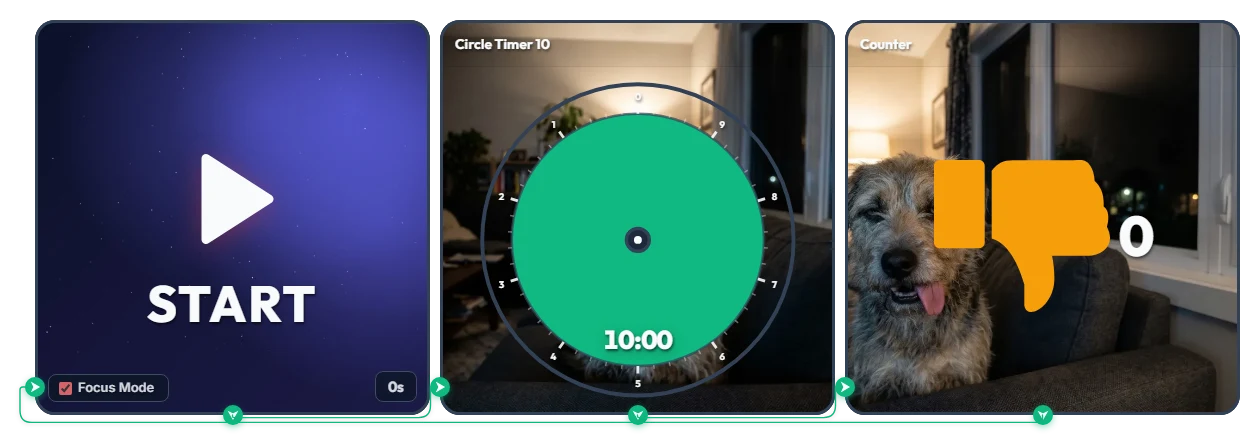
Said "Just 10 Minutes on My Phone" and Now It's 3 AM? Judging Dog's Infinite Thumbs-Down (👎) Loop Timer
A 2-hit combo of pure guilt: a deadpan dog glaring as the green disc shrinks, plus an orange thumbs-down (👎) counter ticking up every 10 minutes! Built for anyone who lies in bed saying "just 10 minutes of Shorts before sleep" and suddenly looks up to see 3:00 AM on the clock. Hit START and Focus Mode fills the entire board view, locking you into an endless 10-minute loop of accountability until you finally snap out of it and stop it yourself. • Hit 1 – The Stare (Circle Timer 10): As the green disc disappears, a furrowed-brow dog slowly emerges with a deeply disappointed glare that screams, "Seriously? You're still scrolling?" • Hit 2 – The Roast (Counter): The second your 10 minutes are up, a cheeky tongue-out dog pops up to mock you as the orange thumbs-down (👎) counter adds +1—and immediately restarts the next 10-minute countdown. Before you even press start, click the center of the Circle Timer on screen and turn the green disc slightly—you can catch an early glimpse of the judging dog lurking right behind it... 📌 Turn This On Whenever Distraction Strikes (Everyday Scenarios) • Escaping the Bedtime Shorts / Reels / TikTok Rabbit Hole Turn this on when "a few quick videos" threatens to turn into two lost hours. Watching that thumbs-down (👎) count hit 2, 3, and 4 right before your eyes will guilt-trip you into putting your phone down for good. • Study & WFH "Just a 10-Minute Break" Reality Check Launch it the moment you start slacking off at your desk. The dog keeps an unforgiving live scorecard of how many 10-minute chunks you've burned in the name of "taking a quick break." • Braking on "One More Match" or YouTube Binge-Watching Keep it open on the side of your monitor when autoplay won't let you go. The faster that green disc vanishes, the harder the dog's stare hits the brakes. • 11 PM Food Delivery App 10-Minute Cutoff Start this timer before you open a delivery app to browse menus. If you haven't decided within 10 minutes and get hit with the dog's mocking face (👎 +1), take it as a sign to skip the late-night snack! ⚙️ How It Works & How to Customize Right on Screen Press START and Focus Mode activates with zero delay (0s), filling the board with the 10-minute Circle Timer. Once time runs out, it logs +1 on the thumbs-down counter and automatically loops back into the next 10-minute round. No complicated setup needed—just click directly on the board above to set your own guilt threshold: • Shorten Your Grace Period & Preview the Stare: Click the center of the middle Circle Timer 10 widget to set a stricter limit within 10 minutes (like 5 minutes)—and sneak a peek at the dog's judging face behind the disc. • Set Prep Countdown: Click '0s' at the bottom right of the left START widget to add a start buffer of up to 59 seconds. • Adjust or Reset the Counter: Hover your mouse over the right Counter widget to reveal a '-1' button in the bottom-left corner (for accidental clicks) and a 'Reset' button in the bottom-right corner. ❤️ If you found this helpful, tap the heart button and share how you used it in the comments—your tip could be a huge help to others!
Evander Vane
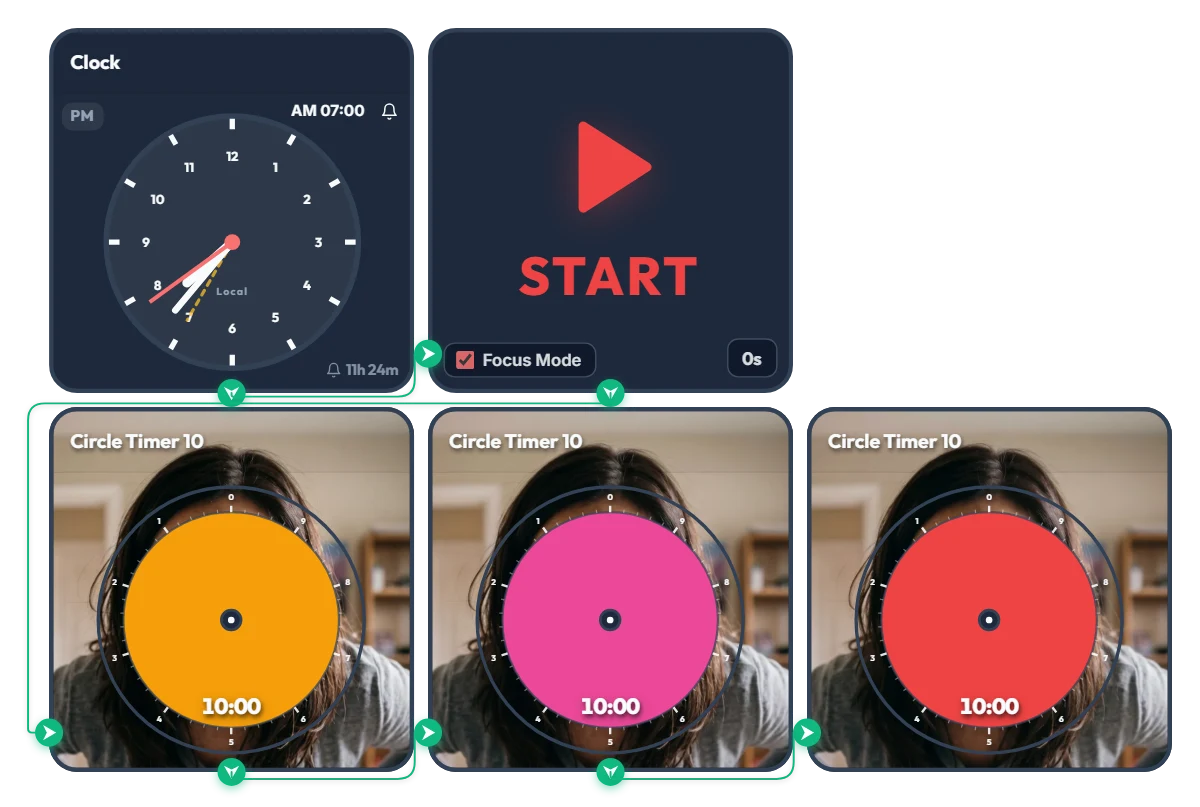
Hit Snooze for "10 More Minutes" and Summon Final-Boss Mom! 3-Stage "Angry Mom" 30-Min Warning Timer
As the orange, pink, and red discs shrink, Mom's expression turns deadlier in real time—get moving before you unlock her final boss face! Made for college students and twenty-somethings who yell "just 10 more minutes!" and accidentally burn an entire half hour, this "Angry Mom" 3-stage snooze-intervention timer keeps you accountable. When the scheduled time hits, Focus Mode expands the active timer to fill the board frame, leaving you nowhere to hide from Mom's piercing glare. And here's why this timer is truly terrifying: click the center of any circle timer on the screen and turn the disc slightly before starting—you'll instantly see what's lurking behind it... 📌 From Waking Up to Any High-Stakes 30-Minute Crunch (Everyday Scenarios) • Morning Snooze Intervention (AM 07:00 – 07:30) At 7:00 AM sharp, the alarm triggers three back-to-back 10-minute timers: - Stage 1 Orange (10 min): "Time to start waking up..." (A calm, patient stare—for now) - Stage 2 Pink (20 min): "Still under the covers?!" (Furrowed brows and rising irritation) - Stage 3 Red (30 min): "GET OUT OF BED RIGHT NOW!!" (Full final-boss meltdown) If you don't want to face Angry Mom, escape your blanket before that orange disc disappears! • 30-Minute Speed-Ready Before Class or Work Turn this on when you have exactly 30 minutes left before walking out the door. Because the color and Mom's face sharpen every 10 minutes, you won't lose track of time zoning out in front of the mirror. • 30-Minute Countdown for Assignment Deadlines, Online Exams & Course Registration Whenever you have a hard 30-minute deadline, three 10-minute pressure stages hit way harder than a single flat 30-minute timer—helping you pace yourself and sprint to the finish. • "I'll Just Check My Phone for 10 Minutes" Reality Check When a quick break turns into 30 minutes of endless short-form scrolling or gaming, put your inner voice of reason right on your monitor to snap back into focus. ⚙️ How It Works & How to Customize Right on Screen When the Clock hits AM 07:00, the START widget triggers Focus Mode and automatically runs the Orange (10 min) → Pink (10 min) → Red (10 min) circle timers across the full board view. (Don't want to wait for morning? Click 'START' directly to launch the 30-minute 3-stage countdown right now!) No complicated setup needed—just click directly on the board above to fit your routine: • Change Alarm Time: Click 'AM 07:00' at the top right of the left Clock widget to set your own wake-up or deadline time. • Set Prep Countdown: Click '0s' at the bottom right of the START widget to add a start buffer of up to 59 seconds. • Adjust Stage Durations & Sneak a Peek: Click the center of each of the 3 bottom Circle Timers to set any duration within 10 minutes (e.g., 5 minutes each for a 15-minute crunch)—and steal a quick peek at Mom's face behind the disc. ❤️ If you found this helpful, tap the heart button and share how you used it in the comments—your tip could be a huge help to others!
Evander Vane
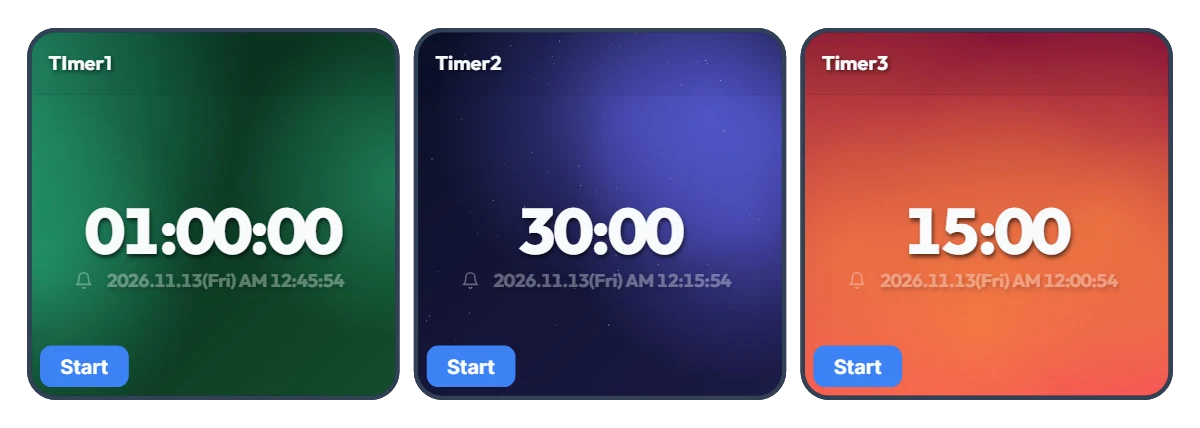
Tired of Resetting Your Timer Every Time You Switch Tasks? 3-Slot One-Click Preset Timer Board
Using just a single timer means constantly re-entering numbers every time you move on to a new task—and that small friction adds up fast. Most of us rely on a few specific time blocks throughout the day. This board places three Smart Timers side by side so you can pre-set your three most-used durations and launch any of them instantly with a single click. The default 1 hour, 30 minutes, and 15 minutes are just starting examples—whether you prefer 5, 30, and 45 minutes or 10 minutes, 20 minutes, and 2 hours, you can customize all three to fit your exact routine. Each timer also displays the exact clock time when it will finish, so you never have to do mental math. 📌 Preset Combinations to Try (Everyday Scenarios) • Work & Freelance Focus Rhythm (e.g., 50 min / 20 min / 10 min) Set three gears for your workday: 50 minutes for deep work, 20 minutes for emails and admin tasks, and 10 minutes for eye rest and stretching. Switch seamlessly with one click without breaking your momentum. • Study & Exam Prep Sessions (e.g., 100 min / 45 min / 15 min) Keep dedicated timers ready for full practice tests (100 min), video lectures or textbook chapters (45 min), and vocabulary or flashcard review (15 min) to keep your study routine effortless. • Kitchen & Household Multitasking (e.g., 40 min / 12 min / 3 min) Because all three timers run independently, you can run multiple countdowns at once. Keep an eye on a 40-minute oven roast, 12-minute pasta boiling, and a 3-minute tea steep all on one screen. • Home Workout & Stretching Flow (e.g., 30 min / 15 min / 5 min) Line up your cardio (30 min), core/strength work (15 min), and cool-down stretch (5 min) in advance so you don't have to touch your phone with sweaty hands mid-workout. • Kids' Daily Routine & Screen-Time Rules (e.g., 30 min / 20 min / 5 min) Pre-set timers for homework or reading (30 min), screen time (20 min), and toy clean-up (5 min). Seeing the large countdown and exact end time helps kids build healthy time-management habits on their own. ⚙️ How It Works & How to Set Your Own Times on Screen All three Smart Timers operate independently right as they appear on your screen: • Instant Start: Click the 'START' button at the bottom left of whichever timer you need to begin counting down immediately—with the exact finish time shown right below the digits. (You can also run two or three timers at the same time.) • Customize Your 3 Presets: Click directly on the center numbers ('01:00:00', '30:00', '15:00') of each timer to change them to your own three go-to durations. ❤️ If you found this helpful, tap the heart button and share how you used it in the comments—your tip could be a huge help to others!
Amelia Miller
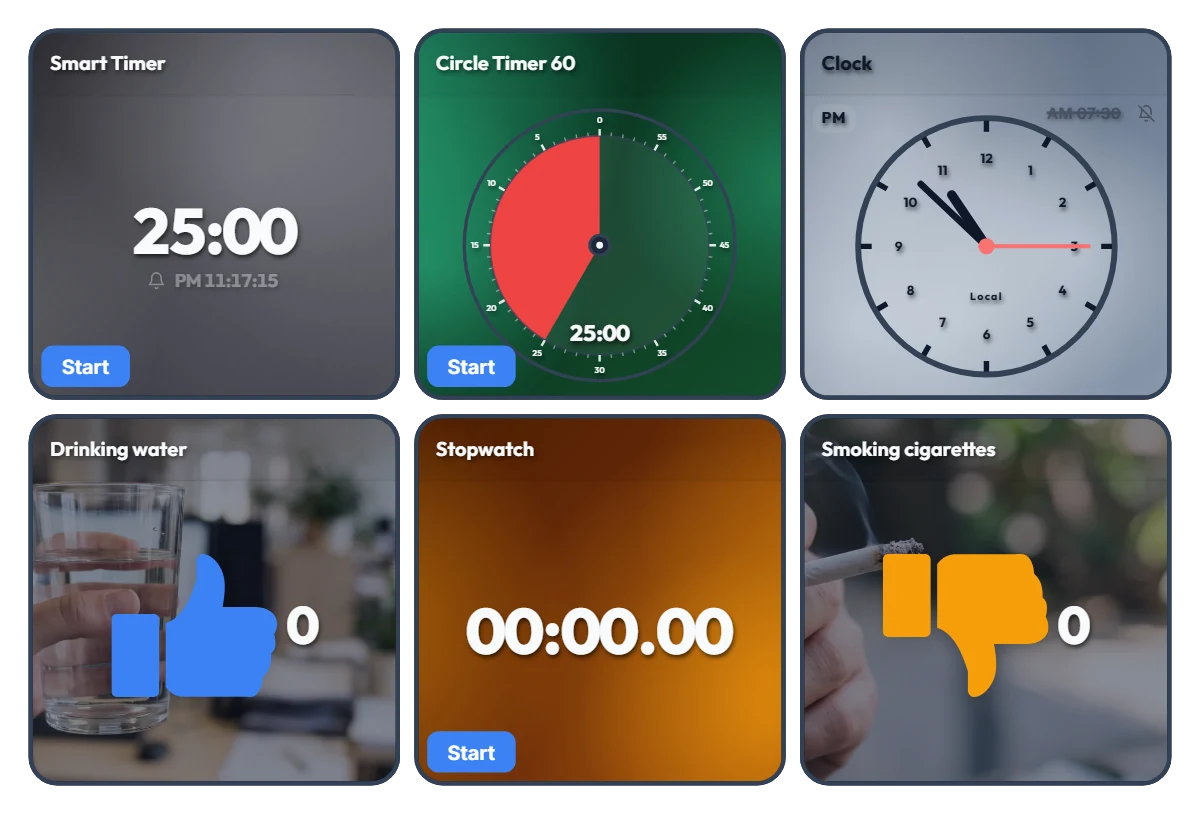
Track Work Hours, Water Intake & Cigarettes on One Screen! All-in-One Desk Dashboard
Tired of juggling separate timer tabs, stopwatch apps, and habit trackers while working or studying? Just keep this single dashboard open on the side of your monitor. This board is an "all-in-one desk control tower" featuring 6 independent tools on one screen—with no auto-linking between widgets. On the top row, timers and a clock keep your current flow and deadlines in check. On the bottom row, a stopwatch tracks your cumulative work hours while one-click counters let you intuitively log daily habits like drinking water (👍) and smoking cigarettes (👎). 📌 Everyday Scenarios Where This Shines • All-in-One Work Dashboard for Office & Remote Workers Measure your total daily work hours with the bottom stopwatch while checking your exact end time on the top Smart Timer. Log your water intake with the blue thumbs-up counter so you stay hydrated during deep work, and track cigarette counts with the orange counter to see your daily patterns at a glance. • Pure Focus Time + Wellness Tracker for Students & Freelancers Accumulate your actual, distraction-free study or work hours with the stopwatch, and use the Circle Timer to set strict time limits for practice tests or tasks. Tracking how many glasses of water you drink also helps keep your energy steady during long desk sessions. • Visual Habit Ledger: Good Habits (+) vs. Habits to Cut Back (-) With the Drinking water (👍) and Smoking cigarettes (👎) counters placed side by side, you get an immediate numeric contrast of your day. Seeing the numbers add up in real time makes it much easier to pace yourself consciously. • Desk Clock & Schedule Alarm in One Turn on the alarm in the top-right clock widget to stay on top of end-of-day wrap-ups, meetings, and break times without opening a separate alarm app. ⚙️ How Each Widget Works & How to Use Them Directly on Screen All 6 widgets operate independently right as they appear on your screen: • Smart Timer (Top Left): Click the bottom 'START' button to run it, or click the center numbers to set your desired duration. It displays the exact clock time when the timer will finish—great for managing deadlines. • Circle Timer 60 (Top Center): Click the bottom 'START' button to begin, and click the center of the circle to freely adjust the duration within 60 minutes. • Clock (Top Right): Click the bell icon (currently off) to toggle the alarm on or off, and click the alarm time ('AM 07:30') next to the bell to change when it rings. • Habit Counters – Drinking water / Smoking cigarettes (Bottom Left & Right): Click anywhere on the widget area to add +1. Hover your mouse over a widget to reveal a '-1' button in the bottom-left corner (handy for accidental clicks) and a 'Reset' button in the bottom-right corner. • Stopwatch (Bottom Center): Click the bottom 'START' button to freely track your total work hours or pure study time for the day. ❤️ If you found this helpful, tap the heart button and share how you used it in the comments—your tip could be a huge help to others!
Amelia Miller
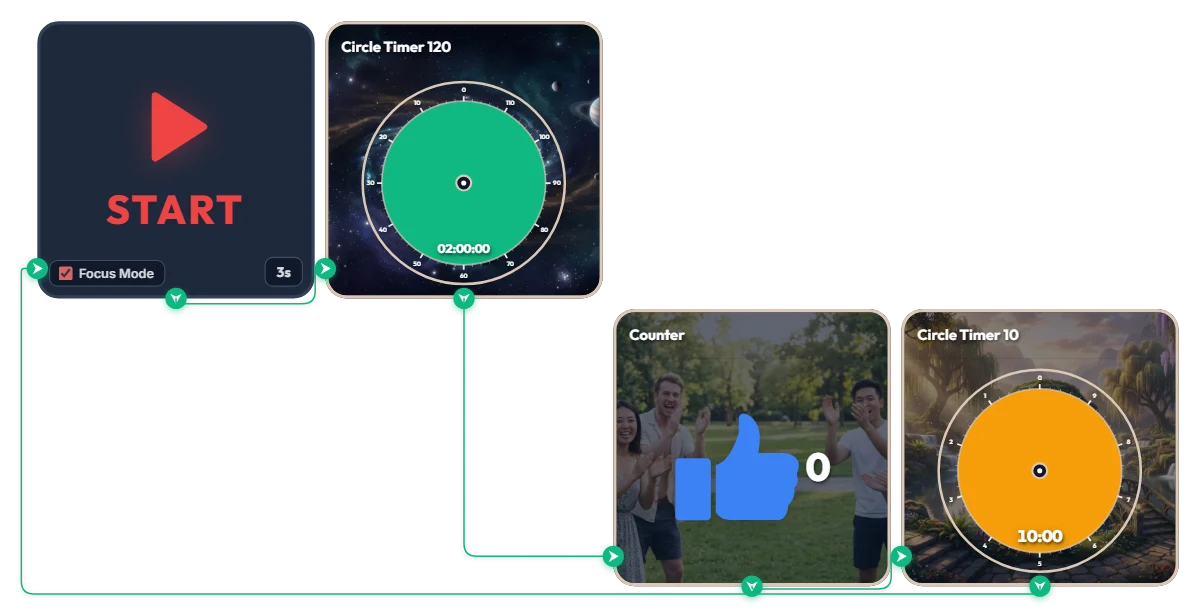
Want 2 Full Hours of Uninterrupted Deep Focus? 120-Min Deep Work + 10-Min Break Auto-Loop Timer
Tackling a complex project or long study session and want to dive deep for two full hours without breaking your flow? This automated loop timer is built for sustained, long-haul deep work. When you hit 'START', a 3-second countdown triggers Focus Mode—expanding only the active widget to fill the board frame while hiding the rest. It runs a seamless infinite loop: 120 minutes of focus (green) → achievement counter (+1) → 10 minutes of rest (orange), then automatically starts the next round. Because it doesn't force your browser into full screen, it sits cleanly alongside your work window or on a second monitor. 📌 Everyday Scenarios Where This Shines • Coding, Design & Video Editing (Deep Work) For complex tasks like programming, 3D rendering, or video editing that demand long stretches of uninterrupted momentum, the green 120-minute gauge keeps you locked in without mid-flow interruptions. • Practice Exams & Timed Mock Tests Simulate real test conditions for 2-hour certification exams, language tests, or 100-minute university entrance sections, followed by an exact 10-minute break to review your score. • Thesis Writing, Research & Deep Reading When your train of thought matters most, silence notifications for two solid hours and immerse yourself completely in a single topic or textbook. • Weekend & Holiday Study Marathons (Track Your Streak) Every time you complete a 120-minute block, the blue thumbs-up counter automatically ticks up by 1—giving you visible proof of how many sessions you crushed today. ⚙️ How It Works & How to Customize Right on Screen Press START and after 3 seconds, Focus Mode activates and fills the board with the green 120-minute timer. Once time is up, it logs +1 on the achievement counter and automatically switches to the orange 10-minute break timer—looping right back into the next 120-minute session when your break ends. No complicated setup needed—just click directly on the board above to match your personal work rhythm: • Change Prep Countdown: Click '3s' at the bottom right of the START widget to adjust the start delay anywhere from 0 to 59 seconds. • Adjust Focus Duration: Click the center of the green Circle Timer 120 widget to set any duration within 120 minutes (such as 90 or 100 minutes) that fits your stamina. • Adjust Break Duration: Click the center of the orange Circle Timer 10 widget to change your break to any duration within 10 minutes (such as 5 or 8 minutes). ❤️ If you found this helpful, tap the heart button and share how you used it in the comments—your tip could be a huge help to others!
Amelia Miller
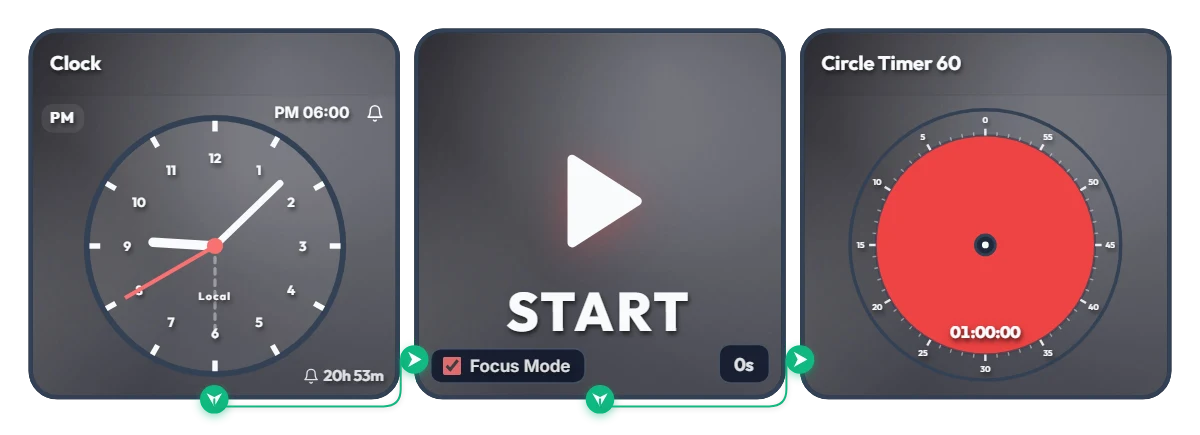
Keep Saying "I'll Start at 6 PM" and Putting It Off? Auto-Start 1-Hour Focus Timer
Ever tell yourself "I'll start right at 6:00 PM," only to lose an hour scrolling on your phone? Stop relying on willpower and let your screen flip the switch for you. This board is a scheduled automation routine. The moment your set time arrives (6:00 PM by default), Focus Mode cleanly hides the other widgets and expands the 60-minute circle timer to fill the entire board frame—starting the countdown immediately. Because it doesn't force your browser into full screen, it's ideal for keeping alongside your work window or on a second monitor. 📌 Everyday Scenarios Where This Shines • After-Work Evening Routine (PM 06:00 – 07:00) Beat post-work sluggishness. At 6:00 PM sharp, your board transforms into a bold red 60-minute timer, nudging you straight into reading, language learning, or a home workout without procrastinating. • Work-From-Home Morning Kickoff (AM 09:00) Struggling to transition from the couch to your desk? Change the alarm to 9:00 AM so your screen automatically switches into focus view and protects your first golden hour of deep work. • Evening Study & Exam Prep (PM 08:00) Overcome post-dinner fatigue with a clear visual rule: when the clock hits 8:00 PM, commit to one distraction-free hour at your desk. • 1-Hour Deadline Sprint Set the alarm one hour before a report or assignment is due. Watching the red visual gauge shrink keeps your focus locked in until the final second. ⚙️ How It Works & How to Customize Right on Screen When the Clock hits the scheduled time, the START widget activates Focus Mode—hiding the other widgets so the 60-minute circle timer fills the board and begins counting down right away. No complicated setup needed—just click directly on the board above to tailor it to your routine: • Change Alarm Time: Click 'PM 06:00' at the top right of the left Clock widget to set your preferred start time. • Set Prep Countdown: Click '0s' at the bottom right of the middle START widget to add a buffer delay of up to 59 seconds (great if you need a moment to sit down and get ready after the alarm goes off!). • Adjust Timer Duration: Click the center of the right Circle Timer widget to set any duration within 60 minutes that matches your focus stamina. ❤️ If you found this helpful, tap the heart button and share how you used it in the comments—your tip could be a huge help to others!
Amelia Miller
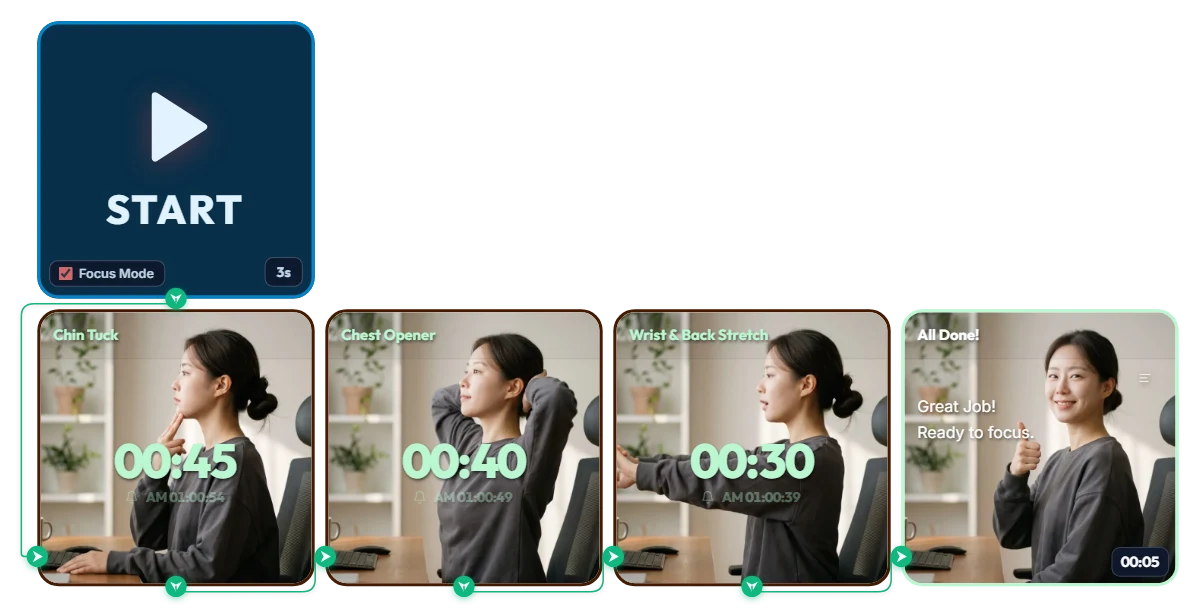
One-Click 3-Step Follow-Along Stretch Timer
Hours of studying, working, or reading can leave your chin jutting forward and your shoulders and upper back rounded and stiff. Follow along with this quick 1-minute-55-second routine to reset your spine and wrists in one go—give it a try right now! Step 1: Chin Tuck — Realign Forward Neck Posture (45s) Prep: Sit all the way back with your hips pressed firmly against the chair backrest and keep your spine tall and straight. Move: Place the index and middle fingers of one hand on the front of your chin and gently glide your chin straight back horizontally toward the back of your neck, like sliding a drawer shut. Breath: Feel a gentle stretch along the back of your neck, hold for 5 seconds, then slowly relax. Repeat 6 times over 45 seconds. Step 2: Chest Opener (Thoracic Extension) — Open Rounded Shoulders & Chest (40s) Prep: Lightly interlace your fingers behind the back of your head. Move: Open both elbows out wide to the sides as far as comfortable while lifting the center of your chest diagonally upward. Breath: Rest your gaze comfortably upward at an angle and breathe deeply while holding the open chest for 10 seconds. Repeat 3–4 times over 40 seconds. Step 3: Wrist & Back Stretch — Loosen Stiff Wrists & Upper Body (30s) Prep: Interlace your hands in front of your chest. Move: Turn your palms outward facing your monitor and extend both arms straight out in front of you at chest height for a refreshing stretch. Breath: Feel your wrists and finger joints lengthen, hold steadily for 15 seconds, then lightly shake your hands out. Complete 2 rounds in total.
Amelia Miller
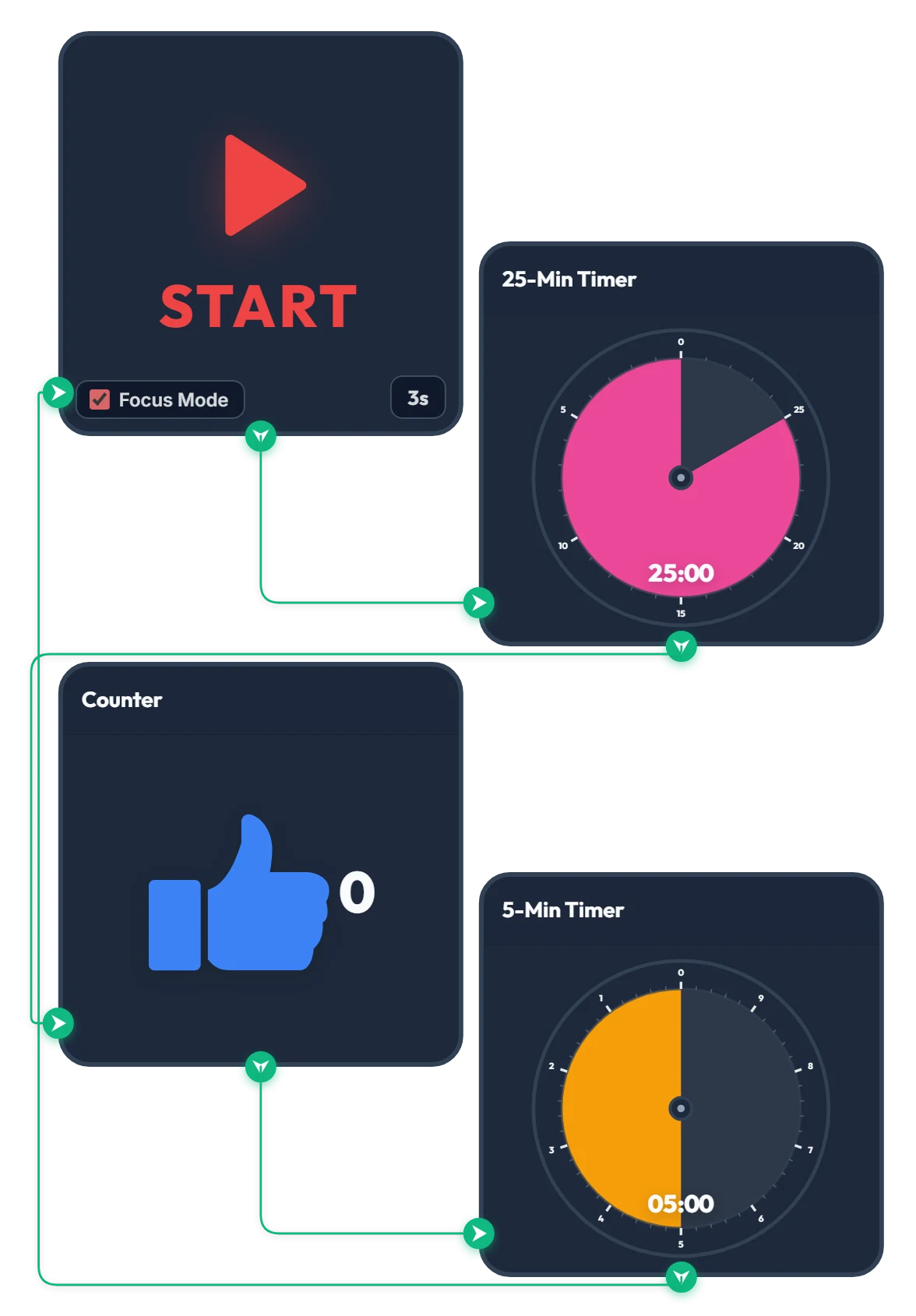
25-Min Focus & 5-Min Break Pomodoro Timer
Press START and, after a quick 3-second countdown, the 25-minute focus timer begins automatically. Once the 25 minutes are up, the counter goes up by 1 and the 5-minute break timer starts right away. When your 5-minute break finishes, it loops straight back to the 3-second countdown so the cycle keeps going on its own. How many cycles can you make it through? Give it a try—if you find it helpful, please tap the heart and leave a comment below!
Amelia Miller