Curated Timer Workflows & Dashboards
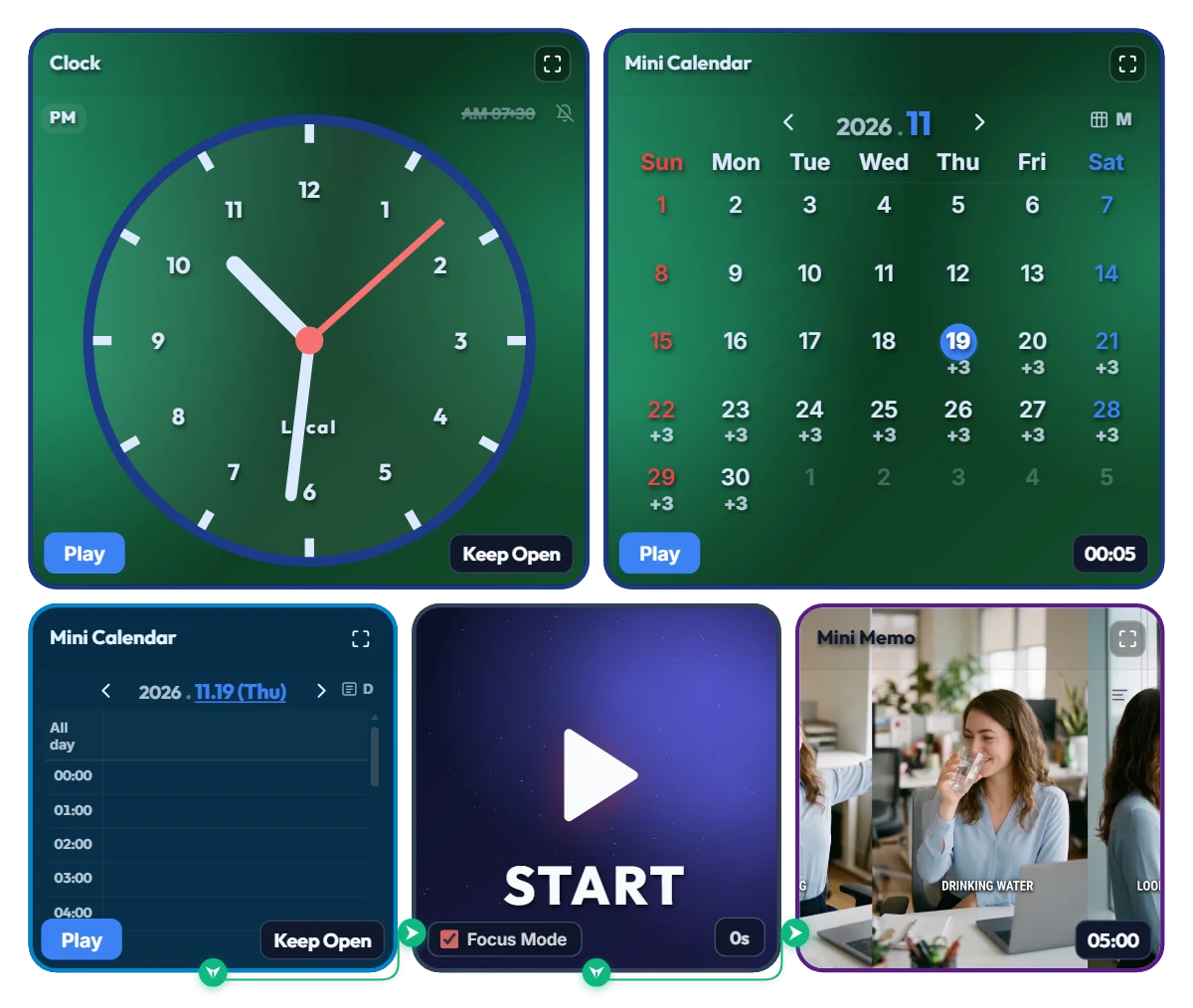
Escape the Chair Trap! Hands-Free "5-Minute Forced Break" Autopilot Board (11 AM · 2 PM · 4 PM)
Ever sit down at your desk "just to check one email," only to look up four hours later with a shrimp-curved spine and realize all you've consumed all day is a single iced coffee? Tiny corner notifications are way too easy to dismiss with a reflex click and a "just five more minutes"—until suddenly it's quitting time and you haven't stood up once. That's why I built this hands-free forced-break board: when the scheduled hour hits, it hijacks your entire monitor for 5 full minutes so you actually have to get up and reset. 📌 Why 3 Times a Day (11:00 · 14:00 · 16:00) Instead of Every 50 Minutes? I initially considered triggering a break every 50 minutes, but during real deep work or study sessions, having your whole screen locked 7–8 times a day breaks your flow and makes you close the tab. Instead, this schedule targets the three biggest slump checkpoints of the day: • 11:00 (Late-Morning Slump): Right before lunch when your neck starts creeping forward and your shoulders lock up. • 14:00 (Post-Lunch Food Coma): Peak brain fog when text on the screen starts blurring together. • 16:00 (Afternoon Battery Drain): The final stretch before wrapping up—when your eyes and lower back desperately need a reset. (Of course, if you prefer hourly breaks, just click any extra time slot in the bottom Mini Calendar to add it right in!) ⚙️ At-a-Glance Dual Dashboard Layout • Top Control Zone (Emerald Green): Features an analog clock for current time alongside a monthly Mini Calendar showing your 3 daily recurring breaks (+3) mapped out across the entire month. • Bottom Auto-Execution Zone: The daily Mini Calendar triggers the 11:00, 14:00, and 16:00 "Rest and recharge" blocks via node lines to the Mini Memo on the right. When the clock hits those hours, the board switches to a full-screen splash guide reminding you to [Stretch · Drink Water · Look Far Away]. • 5-Minute Visual Progress Bar: While the full-screen break is active, a sleek progress bar across the very top and a countdown in the top-right corner steadily shrink from 5:00—so you can pace your stretch and know exactly when you're back on duty. 💡 Quick Operating Tips Before You Start • No need to press the "Play" buttons! Leave the blue "Play" buttons at the bottom-left of the clock and calendars alone. Just keep this browser tab open—it runs as a 100% hands-free autopilot at 11:00, 14:00, and 16:00. • What does the big START button in the middle do? It switches the board into clean Focus Mode AND doubles as an instant preview button if you want to see the 5-minute full-screen break right now without waiting for the next scheduled hour. Don't want to wait the full 5 minutes during a test? Just click the red "Done" button in the bottom-left corner to jump right back to the main screen! • Tweak the alarm times or break length (default 5 min) to fit your routine, then bookmark this page—your custom schedule will be saved right where you left it. ❤️ Cheering on the spines and eyeballs of desk workers, freelancers, and students everywhere! If this board rescued you from your chair today, tap the heart button and let me know in the comments what time of day you lose track of time the worst! ✨
 Evander Vane
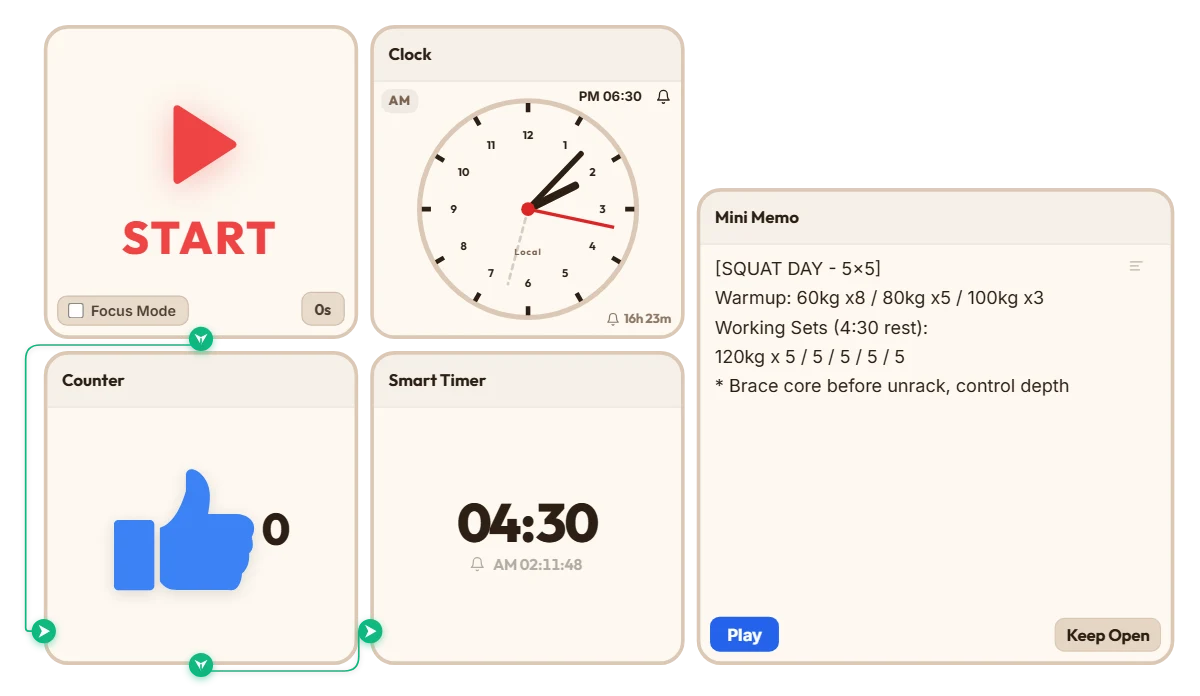
Heavy Squat Rest & Set Tracker (4:30 Rest + Auto Set Counter)
Whenever I do heavy 5x5 squats, I always run into the same annoying problem—by set three or four, brain fog hits hard. I either lose track of what set I'm actually on, or I unlock my phone to set a timer, get distracted, and suddenly realize I've been resting for eight minutes. I was looking for a clean, no-nonsense timer I could just leave open on my screen without downloading another bloated fitness app, and stumbled across this site. Connecting the counter and timer together turned out to be way easier than I expected. Put this board together before my leg session and tried it out—it actually works really well. Just hitting START once after racking the bar automatically ticks my set count up and starts my 4:30 rest countdown, with my warmup and working weights sitting right above it in the memo. Definitely going to keep using this setup for my heavy lifting days. If you train at home or need long rest intervals between heavy sets, feel free to grab this board and just tweak the rest time to fit your routine.
 Bradley Han
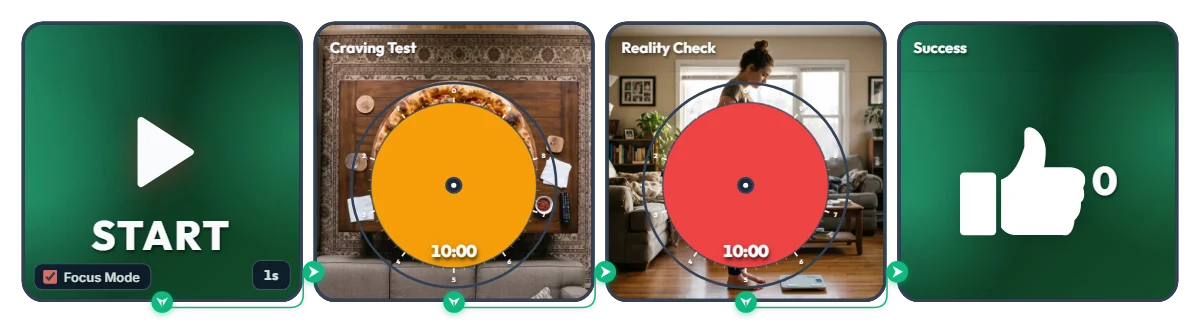
Hold Off for Just 20 Minutes Before Hitting Checkout at 11 PM! "Pizza Craving vs. Morning Scale" Snack Defense Timer
Nobody is asking you to give up late-night snacks forever—just survive 20 minutes before tapping "Place Order" on that delivery app! (Fun fact: fake midnight hunger actually vanishes after 15–20 minutes.) Built with a traffic-light color flow—Green (Safe) → Orange (Pure Temptation) → Red (Reality Check) → Green (Victory)—this one-shot 20-minute mission board tests your willpower. Hit START and Focus Mode fills your screen with a giant pizza and tomorrow morning's plot twist. • Stage 1 – The Temptation (Craving Test / 10 min): As the orange disc shrinks clockwise, a hot, freshly baked pepperoni pizza on a living room table slowly reveals itself slice by slice. ("Order now and it's at your door in 30 minutes… sure you can resist?") • Stage 2 – The Wake-Up Call (Reality Check / 10 min): Survive the first 10 minutes of internal debate and the red warning disc takes over—gradually uncovering tomorrow morning's reality: clutching your stomach while staring down at the bathroom scale. ("Could've been 0 calories if you closed the app…!") • The Reward (Success): Make it past the 20-minute danger zone and the thumbs-up (👍) counter ticks up +1 to celebrate your late-night victory. Before you even press start, click the center of either Circle Timer on screen and nudge the colored disc slightly—you can sneak a preview of that pizza slice and tomorrow's scale ending… 📌 Turn This On Whenever Midnight Munchies Strike (Everyday Scenarios) • 11 PM Delivery App Scroll Right Before Checkout Launch this as your final firewall before hitting pay on Uber Eats or DoorDash. Once you watch the full pizza appear—followed by the scale—closing the app for a glass of water suddenly feels effortless. • Binge-Watching Shows & Aimlessly Opening the Fridge When you're not actually hungry and just want to munch out of boredom, keep this running on the side of your monitor to outlast the 20-minute craving peak. • Mid-Diet "Should I Make Tonight a Cheat Night?" Inner Battle Seeing temptation (orange) and regret (red) back-to-back acts as an instant visual brake against impulse ordering. • Late-Night Cold Drink Cravings Calling for Takeout Sides Stack up those green thumbs-up (👍) wins one night at a time and wake up feeling light instead of bloated. ⚙️ How It Works & How to Customize Right on Screen Press START and after a 1-second buffer (1s), Focus Mode activates and runs the 20-minute mission in order: [Craving Test (10 min) → Reality Check (10 min) → Success Counter (+1)]. No complicated setup needed—click directly on the board above to match your willpower threshold: • Adjust Hold Time & Peek at the Ending: Click the center of the two middle Circle Timers (Craving Test, Reality Check) to shorten either round within 10 minutes (like 5 minutes each for a quick 10-minute test) and preview the image hiding behind the disc. • Change Start Delay: Click '1s' at the bottom right of the left START widget to set a pre-start countdown anywhere from 0 to 59 seconds. • Edit or Reset Your Win Counter: Hover your mouse over the right Success widget to reveal a '-1' button in the bottom-left corner (for accidental clicks) and a 'Reset' button in the bottom-right corner. ❤️ If you survived the 20 minutes, tap the heart button and tell us in the comments what late-night craving you defeated—your win might save someone else's diet tonight!
Evander Vane
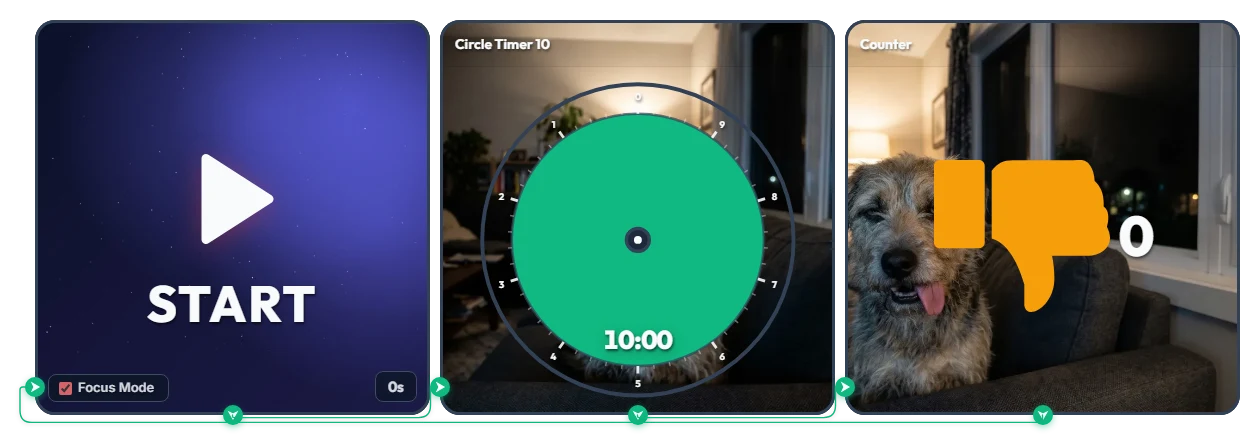
Said "Just 10 Minutes on My Phone" and Now It's 3 AM? Judging Dog's Infinite Thumbs-Down (👎) Loop Timer
A 2-hit combo of pure guilt: a deadpan dog glaring as the green disc shrinks, plus an orange thumbs-down (👎) counter ticking up every 10 minutes! Built for anyone who lies in bed saying "just 10 minutes of Shorts before sleep" and suddenly looks up to see 3:00 AM on the clock. Hit START and Focus Mode fills the entire board view, locking you into an endless 10-minute loop of accountability until you finally snap out of it and stop it yourself. • Hit 1 – The Stare (Circle Timer 10): As the green disc disappears, a furrowed-brow dog slowly emerges with a deeply disappointed glare that screams, "Seriously? You're still scrolling?" • Hit 2 – The Roast (Counter): The second your 10 minutes are up, a cheeky tongue-out dog pops up to mock you as the orange thumbs-down (👎) counter adds +1—and immediately restarts the next 10-minute countdown. Before you even press start, click the center of the Circle Timer on screen and turn the green disc slightly—you can catch an early glimpse of the judging dog lurking right behind it... 📌 Turn This On Whenever Distraction Strikes (Everyday Scenarios) • Escaping the Bedtime Shorts / Reels / TikTok Rabbit Hole Turn this on when "a few quick videos" threatens to turn into two lost hours. Watching that thumbs-down (👎) count hit 2, 3, and 4 right before your eyes will guilt-trip you into putting your phone down for good. • Study & WFH "Just a 10-Minute Break" Reality Check Launch it the moment you start slacking off at your desk. The dog keeps an unforgiving live scorecard of how many 10-minute chunks you've burned in the name of "taking a quick break." • Braking on "One More Match" or YouTube Binge-Watching Keep it open on the side of your monitor when autoplay won't let you go. The faster that green disc vanishes, the harder the dog's stare hits the brakes. • 11 PM Food Delivery App 10-Minute Cutoff Start this timer before you open a delivery app to browse menus. If you haven't decided within 10 minutes and get hit with the dog's mocking face (👎 +1), take it as a sign to skip the late-night snack! ⚙️ How It Works & How to Customize Right on Screen Press START and Focus Mode activates with zero delay (0s), filling the board with the 10-minute Circle Timer. Once time runs out, it logs +1 on the thumbs-down counter and automatically loops back into the next 10-minute round. No complicated setup needed—just click directly on the board above to set your own guilt threshold: • Shorten Your Grace Period & Preview the Stare: Click the center of the middle Circle Timer 10 widget to set a stricter limit within 10 minutes (like 5 minutes)—and sneak a peek at the dog's judging face behind the disc. • Set Prep Countdown: Click '0s' at the bottom right of the left START widget to add a start buffer of up to 59 seconds. • Adjust or Reset the Counter: Hover your mouse over the right Counter widget to reveal a '-1' button in the bottom-left corner (for accidental clicks) and a 'Reset' button in the bottom-right corner. ❤️ If you found this helpful, tap the heart button and share how you used it in the comments—your tip could be a huge help to others!
Evander Vane