Curated Timer Workflows & Dashboards
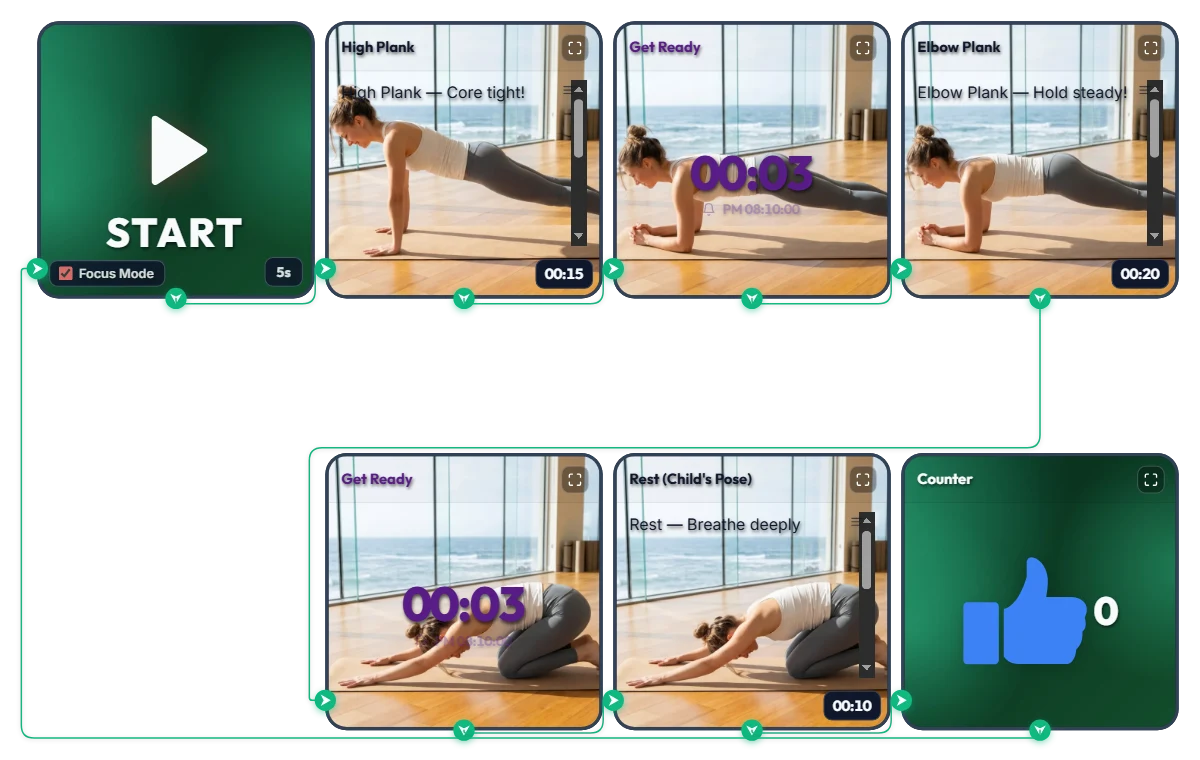
3-Minute Daily Core Routine! Customizable "High Plank → Elbow Plank" Infinite Loop Workout Timer
A shrinking top progress bar visually tracks your hold time while 3-second transition alarms cue every pose change—so you can follow along effortlessly face-down on your mat. This infinite-loop home workout board pairs High Plank (15s) → Elbow Plank (20s) → Child's Pose Rest (10s) into one quick set, automatically adding +1 to your thumbs-up (👍) counter every time you finish a round. Hit START and Focus Mode expands the exercise photos and form cues across the screen like your own personal trainer. The default times are set to an approachable beginner pace. Feel free to increase or decrease each interval to match your core strength and fitness level! 📌 Adapt It to Your Fitness Level & Schedule (Everyday Scenarios) • Beginner & Starter Core Routine (Default: 15s / 20s / 10s) New to planks? Start with the default settings and aim to complete 3 sets (about 2.5 minutes total). If holding feels tough at first, shorten the intervals to 10 seconds and focus on locking in proper form. • Intermediate & Advanced Core Challenge (e.g., 40s / 60s / 15s) If the starter pace feels too easy, bump each hold up to 30, 45, or 60+ seconds. Thanks to the 3-second transition alarm at the end of every move, you can switch positions smoothly without craning your neck to look at the screen. • 3-Minute Desk Break Refresh for Office Workers & Students Whenever your lower back and shoulders feel stiff from sitting too long, drop onto your mat for 3 to 4 quick sets. Watching the blue top progress bar shrink keeps you focused and recharges your energy fast. ⚙️ How It Works & How to Customize Durations Right on Screen Press START and after a 5-second setup countdown (5s), Focus Mode turns on and loops automatically through: [High Plank (15s) → Transition Alarm (3s) → Elbow Plank (20s) → Rest Alarm (3s) → Child's Pose Rest (10s) → Set Counter (+1)]. No complicated menus needed—click directly on the board above to tailor the difficulty: • Adjust Hold & Rest Times: Click the time display ('00:15', '00:20', '00:10') in the bottom-right corner of each of the 3 bottom exercise widgets (High Plank, Elbow Plank, Rest) to increase or decrease hours, minutes, or seconds. • Change Start Prep Time: Click '5s' at the bottom right of the left START widget to set anywhere from 0 to 59 seconds to get down into position. • Change Transition Alarm Duration: Click the center numbers ('00:03') on the two top-middle 'Get Ready' Smart Timers to adjust the buffer time between moves. • Edit or Reset the Set Counter: Hover your mouse over the top-right Counter widget to reveal a '-1' button in the bottom-left corner and a 'Reset' button in the bottom-right corner. ❤️ If you found this helpful, tap the heart button and let us know in the comments how many sets you crushed—your streak will motivate others!
 Amelia Miller
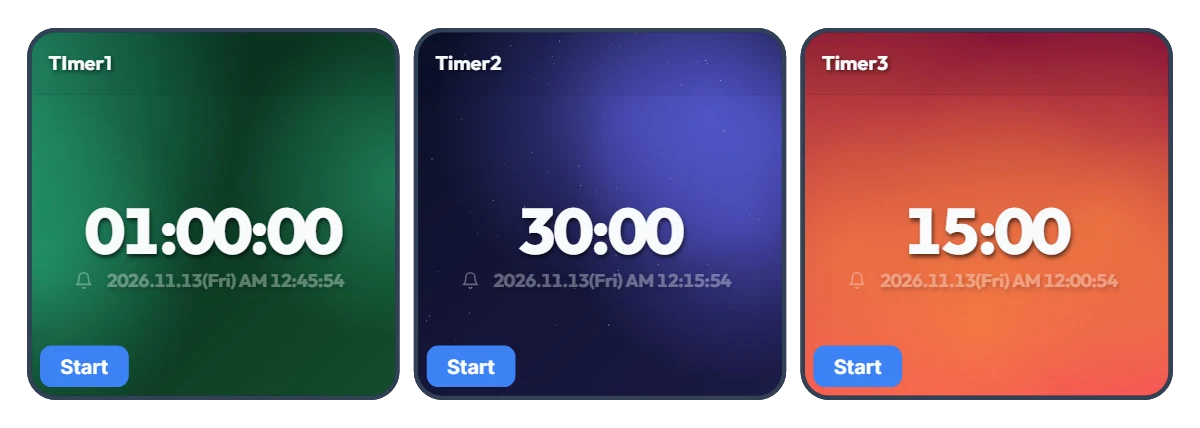
Tired of Resetting Your Timer Every Time You Switch Tasks? 3-Slot One-Click Preset Timer Board
Using just a single timer means constantly re-entering numbers every time you move on to a new task—and that small friction adds up fast. Most of us rely on a few specific time blocks throughout the day. This board places three Smart Timers side by side so you can pre-set your three most-used durations and launch any of them instantly with a single click. The default 1 hour, 30 minutes, and 15 minutes are just starting examples—whether you prefer 5, 30, and 45 minutes or 10 minutes, 20 minutes, and 2 hours, you can customize all three to fit your exact routine. Each timer also displays the exact clock time when it will finish, so you never have to do mental math. 📌 Preset Combinations to Try (Everyday Scenarios) • Work & Freelance Focus Rhythm (e.g., 50 min / 20 min / 10 min) Set three gears for your workday: 50 minutes for deep work, 20 minutes for emails and admin tasks, and 10 minutes for eye rest and stretching. Switch seamlessly with one click without breaking your momentum. • Study & Exam Prep Sessions (e.g., 100 min / 45 min / 15 min) Keep dedicated timers ready for full practice tests (100 min), video lectures or textbook chapters (45 min), and vocabulary or flashcard review (15 min) to keep your study routine effortless. • Kitchen & Household Multitasking (e.g., 40 min / 12 min / 3 min) Because all three timers run independently, you can run multiple countdowns at once. Keep an eye on a 40-minute oven roast, 12-minute pasta boiling, and a 3-minute tea steep all on one screen. • Home Workout & Stretching Flow (e.g., 30 min / 15 min / 5 min) Line up your cardio (30 min), core/strength work (15 min), and cool-down stretch (5 min) in advance so you don't have to touch your phone with sweaty hands mid-workout. • Kids' Daily Routine & Screen-Time Rules (e.g., 30 min / 20 min / 5 min) Pre-set timers for homework or reading (30 min), screen time (20 min), and toy clean-up (5 min). Seeing the large countdown and exact end time helps kids build healthy time-management habits on their own. ⚙️ How It Works & How to Set Your Own Times on Screen All three Smart Timers operate independently right as they appear on your screen: • Instant Start: Click the 'START' button at the bottom left of whichever timer you need to begin counting down immediately—with the exact finish time shown right below the digits. (You can also run two or three timers at the same time.) • Customize Your 3 Presets: Click directly on the center numbers ('01:00:00', '30:00', '15:00') of each timer to change them to your own three go-to durations. ❤️ If you found this helpful, tap the heart button and share how you used it in the comments—your tip could be a huge help to others!
Amelia Miller
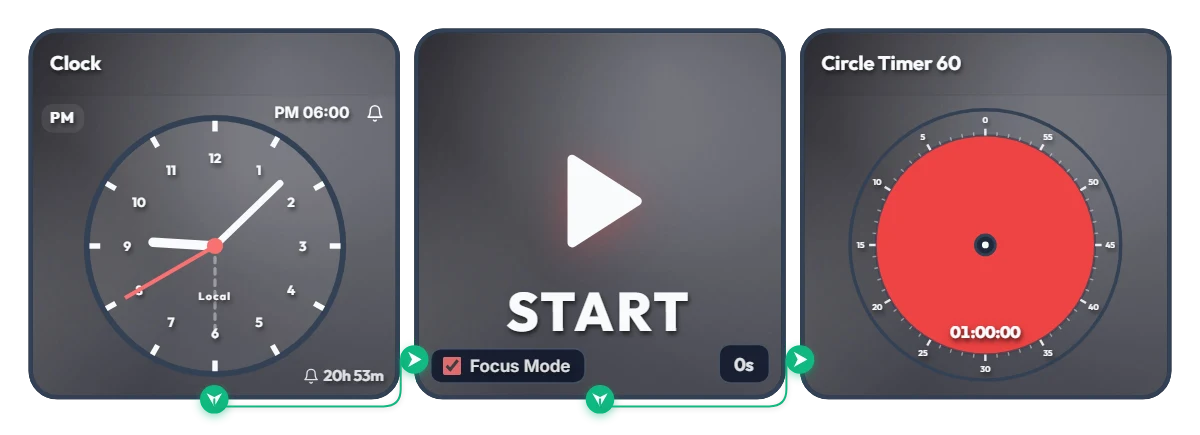
Keep Saying "I'll Start at 6 PM" and Putting It Off? Auto-Start 1-Hour Focus Timer
Ever tell yourself "I'll start right at 6:00 PM," only to lose an hour scrolling on your phone? Stop relying on willpower and let your screen flip the switch for you. This board is a scheduled automation routine. The moment your set time arrives (6:00 PM by default), Focus Mode cleanly hides the other widgets and expands the 60-minute circle timer to fill the entire board frame—starting the countdown immediately. Because it doesn't force your browser into full screen, it's ideal for keeping alongside your work window or on a second monitor. 📌 Everyday Scenarios Where This Shines • After-Work Evening Routine (PM 06:00 – 07:00) Beat post-work sluggishness. At 6:00 PM sharp, your board transforms into a bold red 60-minute timer, nudging you straight into reading, language learning, or a home workout without procrastinating. • Work-From-Home Morning Kickoff (AM 09:00) Struggling to transition from the couch to your desk? Change the alarm to 9:00 AM so your screen automatically switches into focus view and protects your first golden hour of deep work. • Evening Study & Exam Prep (PM 08:00) Overcome post-dinner fatigue with a clear visual rule: when the clock hits 8:00 PM, commit to one distraction-free hour at your desk. • 1-Hour Deadline Sprint Set the alarm one hour before a report or assignment is due. Watching the red visual gauge shrink keeps your focus locked in until the final second. ⚙️ How It Works & How to Customize Right on Screen When the Clock hits the scheduled time, the START widget activates Focus Mode—hiding the other widgets so the 60-minute circle timer fills the board and begins counting down right away. No complicated setup needed—just click directly on the board above to tailor it to your routine: • Change Alarm Time: Click 'PM 06:00' at the top right of the left Clock widget to set your preferred start time. • Set Prep Countdown: Click '0s' at the bottom right of the middle START widget to add a buffer delay of up to 59 seconds (great if you need a moment to sit down and get ready after the alarm goes off!). • Adjust Timer Duration: Click the center of the right Circle Timer widget to set any duration within 60 minutes that matches your focus stamina. ❤️ If you found this helpful, tap the heart button and share how you used it in the comments—your tip could be a huge help to others!
Amelia Miller