Curated Timer Workflows & Dashboards
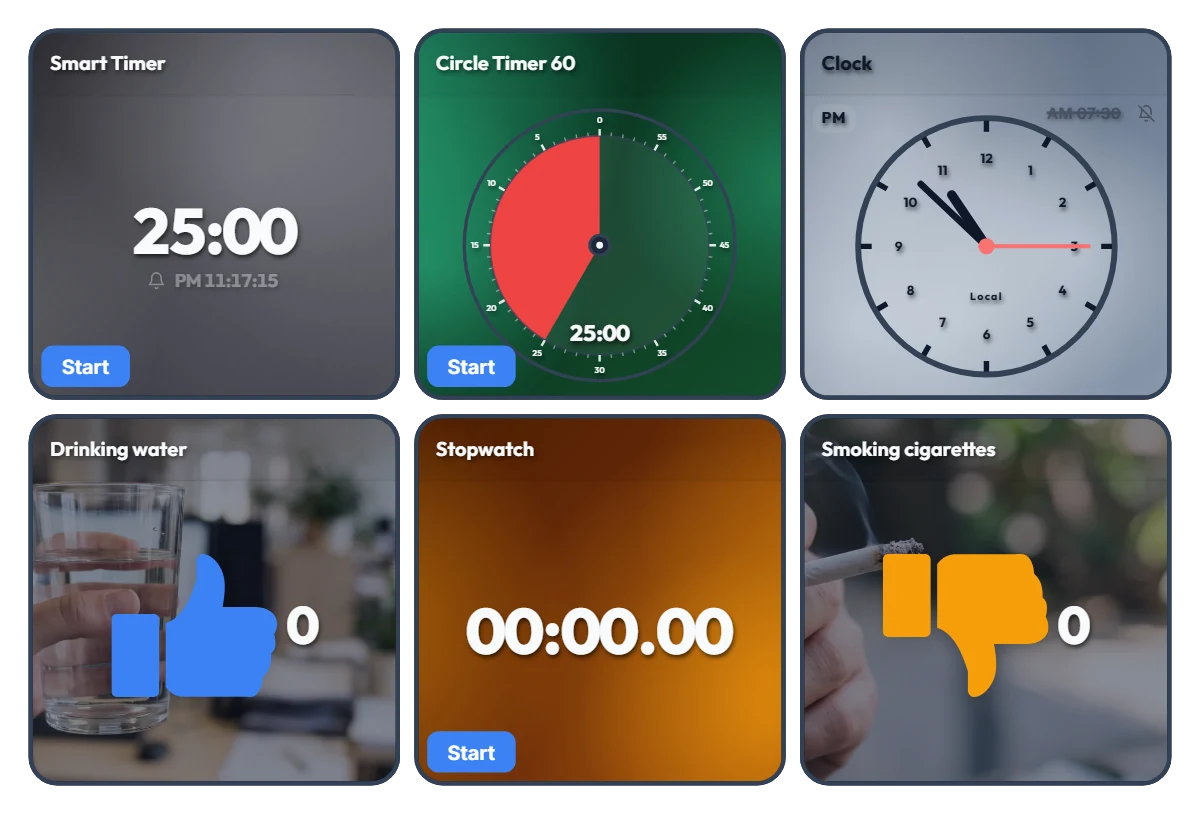
Track Work Hours, Water Intake & Cigarettes on One Screen! All-in-One Desk Dashboard
Tired of juggling separate timer tabs, stopwatch apps, and habit trackers while working or studying? Just keep this single dashboard open on the side of your monitor. This board is an "all-in-one desk control tower" featuring 6 independent tools on one screen—with no auto-linking between widgets. On the top row, timers and a clock keep your current flow and deadlines in check. On the bottom row, a stopwatch tracks your cumulative work hours while one-click counters let you intuitively log daily habits like drinking water (👍) and smoking cigarettes (👎). 📌 Everyday Scenarios Where This Shines • All-in-One Work Dashboard for Office & Remote Workers Measure your total daily work hours with the bottom stopwatch while checking your exact end time on the top Smart Timer. Log your water intake with the blue thumbs-up counter so you stay hydrated during deep work, and track cigarette counts with the orange counter to see your daily patterns at a glance. • Pure Focus Time + Wellness Tracker for Students & Freelancers Accumulate your actual, distraction-free study or work hours with the stopwatch, and use the Circle Timer to set strict time limits for practice tests or tasks. Tracking how many glasses of water you drink also helps keep your energy steady during long desk sessions. • Visual Habit Ledger: Good Habits (+) vs. Habits to Cut Back (-) With the Drinking water (👍) and Smoking cigarettes (👎) counters placed side by side, you get an immediate numeric contrast of your day. Seeing the numbers add up in real time makes it much easier to pace yourself consciously. • Desk Clock & Schedule Alarm in One Turn on the alarm in the top-right clock widget to stay on top of end-of-day wrap-ups, meetings, and break times without opening a separate alarm app. ⚙️ How Each Widget Works & How to Use Them Directly on Screen All 6 widgets operate independently right as they appear on your screen: • Smart Timer (Top Left): Click the bottom 'START' button to run it, or click the center numbers to set your desired duration. It displays the exact clock time when the timer will finish—great for managing deadlines. • Circle Timer 60 (Top Center): Click the bottom 'START' button to begin, and click the center of the circle to freely adjust the duration within 60 minutes. • Clock (Top Right): Click the bell icon (currently off) to toggle the alarm on or off, and click the alarm time ('AM 07:30') next to the bell to change when it rings. • Habit Counters – Drinking water / Smoking cigarettes (Bottom Left & Right): Click anywhere on the widget area to add +1. Hover your mouse over a widget to reveal a '-1' button in the bottom-left corner (handy for accidental clicks) and a 'Reset' button in the bottom-right corner. • Stopwatch (Bottom Center): Click the bottom 'START' button to freely track your total work hours or pure study time for the day. ❤️ If you found this helpful, tap the heart button and share how you used it in the comments—your tip could be a huge help to others!
 Amelia Miller