Curated Timer Workflows & Dashboards
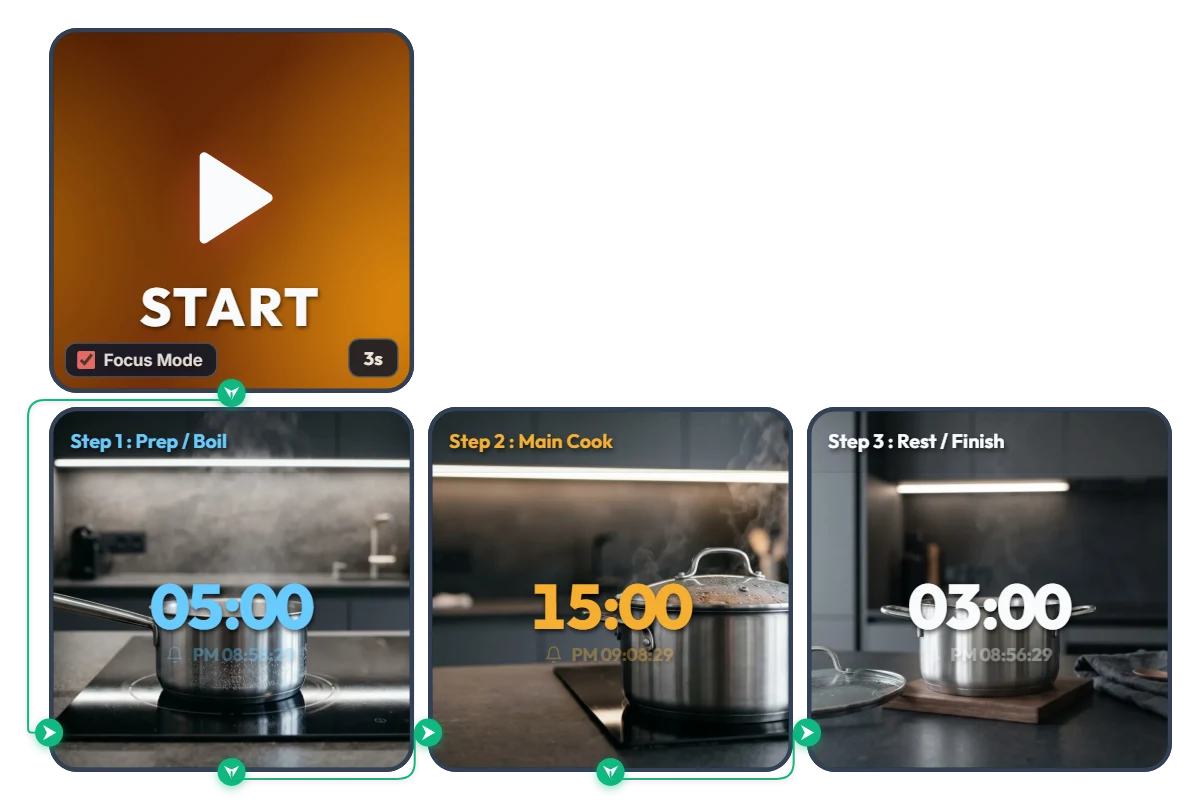
Tired of Resetting Your Timer with Wet Hands? One-Tap 3-Step Sequential Cooking Timer
Skip the hassle of tapping multiple hood timers like a busy restaurant line or wiping wet hands just to reset a single kitchen timer between steps. This 3-step sequential cooking board links your entire cooking flow automatically from start to finish. Rather than locking you into a single dish, it lets you pre-set your own rhythm—[Step 1: Prep / Boil → Step 2: Main Cook → Step 3: Rest / Finish]—and press START just once. Focus Mode fills your screen with calm, modern kitchen visuals and large color-coded digits (sky blue → warm amber → crisp white), so you can tell which stage you're in at a glance from across the kitchen. • Step 1 – Prep / Boil (05:00 / Sky Blue): Starts your first countdown against a serene view of clear water coming to a gentle simmer in a stainless steel saucepan. • Step 2 – Main Cook (15:00 / Warm Amber): Once the first alarm chimes, the board switches automatically with zero screen-tapping needed—transitioning to a covered pot steaming steadily as your dish cooks through. • Step 3 – Rest / Finish (03:00 / Crisp White): When main cooking finishes, it moves to the final resting stage—a quiet pot off the heat on a walnut trivet—so your meal finishes with the right texture and flavor. 📌 Tailor the 3-Step Flow to Whatever You're Cooking Today (Everyday Scenarios) • Pasta & Noodle Dishes Set [Step 1: Bring water to a boil] → [Step 2: Boil pasta to al dente] → [Step 3: Toss and finish in the sauce] so your noodles never turn mushy or undercooked. • Steak & Meat Searing + Resting Map out [Step 1: Preheat the skillet] → [Step 2: Sear and baste to temp] → [Step 3: Rest off the heat to lock in juices] with clean, hands-free transitions. • Risotto, Quinoa & Simmered Stews Link [Step 1: Bring broth to a boil] → [Step 2: Simmer gently on low] → [Step 3: Turn off heat and steam covered] in one uninterrupted flow. • Pour-Over Coffee, Loose-Leaf Tea & Home Baking Ideal for delicate home-café routines like [Step 1: Heat water & bloom] → [Step 2: Brew or bake] → [Step 3: Cool slightly before serving]. ⚙️ How It Works & How to Customize Times for Your Recipe Press START and after a 3-second prep countdown (3s), Focus Mode turns on and runs Step 1 → Step 2 → Step 3 automatically. An alarm sounds at the end of every stage, and the exact completion time is shown right below the countdown digits. No complicated menus needed—click directly on the board above to fit today's recipe: • Set Each Cooking Stage Duration: Click the center time digits ('05:00', '15:00', '03:00') on each of the three Smart Timers to enter any hours, minutes, or seconds before you start cooking. • Change Start Prep Delay: Click '3s' at the bottom right of the left START widget to adjust the pre-start buffer anywhere from 0 to 59 seconds. ❤️ If this made your time in the kitchen smoother, tap the heart button and share in the comments what dish you cooked with it—your timing setup could inspire someone else's dinner!
 Amelia Miller
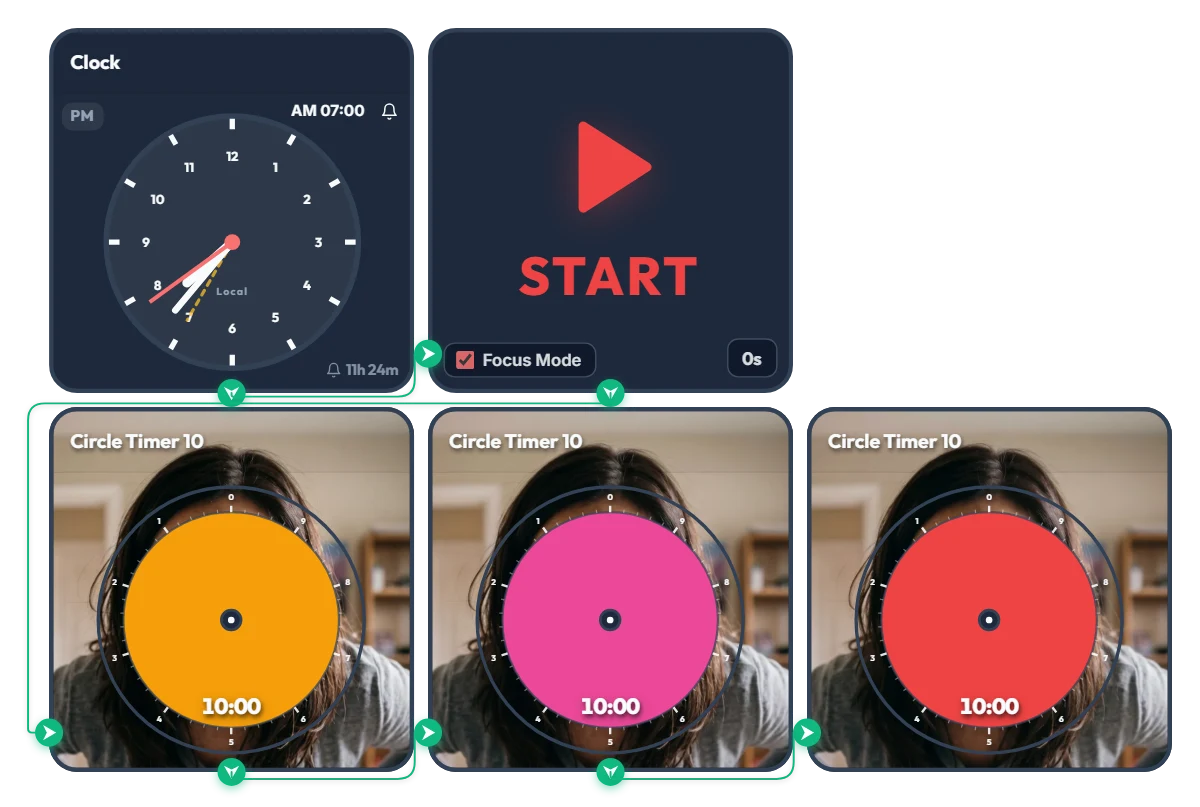
Hit Snooze for "10 More Minutes" and Summon Final-Boss Mom! 3-Stage "Angry Mom" 30-Min Warning Timer
As the orange, pink, and red discs shrink, Mom's expression turns deadlier in real time—get moving before you unlock her final boss face! Made for college students and twenty-somethings who yell "just 10 more minutes!" and accidentally burn an entire half hour, this "Angry Mom" 3-stage snooze-intervention timer keeps you accountable. When the scheduled time hits, Focus Mode expands the active timer to fill the board frame, leaving you nowhere to hide from Mom's piercing glare. And here's why this timer is truly terrifying: click the center of any circle timer on the screen and turn the disc slightly before starting—you'll instantly see what's lurking behind it... 📌 From Waking Up to Any High-Stakes 30-Minute Crunch (Everyday Scenarios) • Morning Snooze Intervention (AM 07:00 – 07:30) At 7:00 AM sharp, the alarm triggers three back-to-back 10-minute timers: - Stage 1 Orange (10 min): "Time to start waking up..." (A calm, patient stare—for now) - Stage 2 Pink (20 min): "Still under the covers?!" (Furrowed brows and rising irritation) - Stage 3 Red (30 min): "GET OUT OF BED RIGHT NOW!!" (Full final-boss meltdown) If you don't want to face Angry Mom, escape your blanket before that orange disc disappears! • 30-Minute Speed-Ready Before Class or Work Turn this on when you have exactly 30 minutes left before walking out the door. Because the color and Mom's face sharpen every 10 minutes, you won't lose track of time zoning out in front of the mirror. • 30-Minute Countdown for Assignment Deadlines, Online Exams & Course Registration Whenever you have a hard 30-minute deadline, three 10-minute pressure stages hit way harder than a single flat 30-minute timer—helping you pace yourself and sprint to the finish. • "I'll Just Check My Phone for 10 Minutes" Reality Check When a quick break turns into 30 minutes of endless short-form scrolling or gaming, put your inner voice of reason right on your monitor to snap back into focus. ⚙️ How It Works & How to Customize Right on Screen When the Clock hits AM 07:00, the START widget triggers Focus Mode and automatically runs the Orange (10 min) → Pink (10 min) → Red (10 min) circle timers across the full board view. (Don't want to wait for morning? Click 'START' directly to launch the 30-minute 3-stage countdown right now!) No complicated setup needed—just click directly on the board above to fit your routine: • Change Alarm Time: Click 'AM 07:00' at the top right of the left Clock widget to set your own wake-up or deadline time. • Set Prep Countdown: Click '0s' at the bottom right of the START widget to add a start buffer of up to 59 seconds. • Adjust Stage Durations & Sneak a Peek: Click the center of each of the 3 bottom Circle Timers to set any duration within 10 minutes (e.g., 5 minutes each for a 15-minute crunch)—and steal a quick peek at Mom's face behind the disc. ❤️ If you found this helpful, tap the heart button and share how you used it in the comments—your tip could be a huge help to others!
 Evander Vane
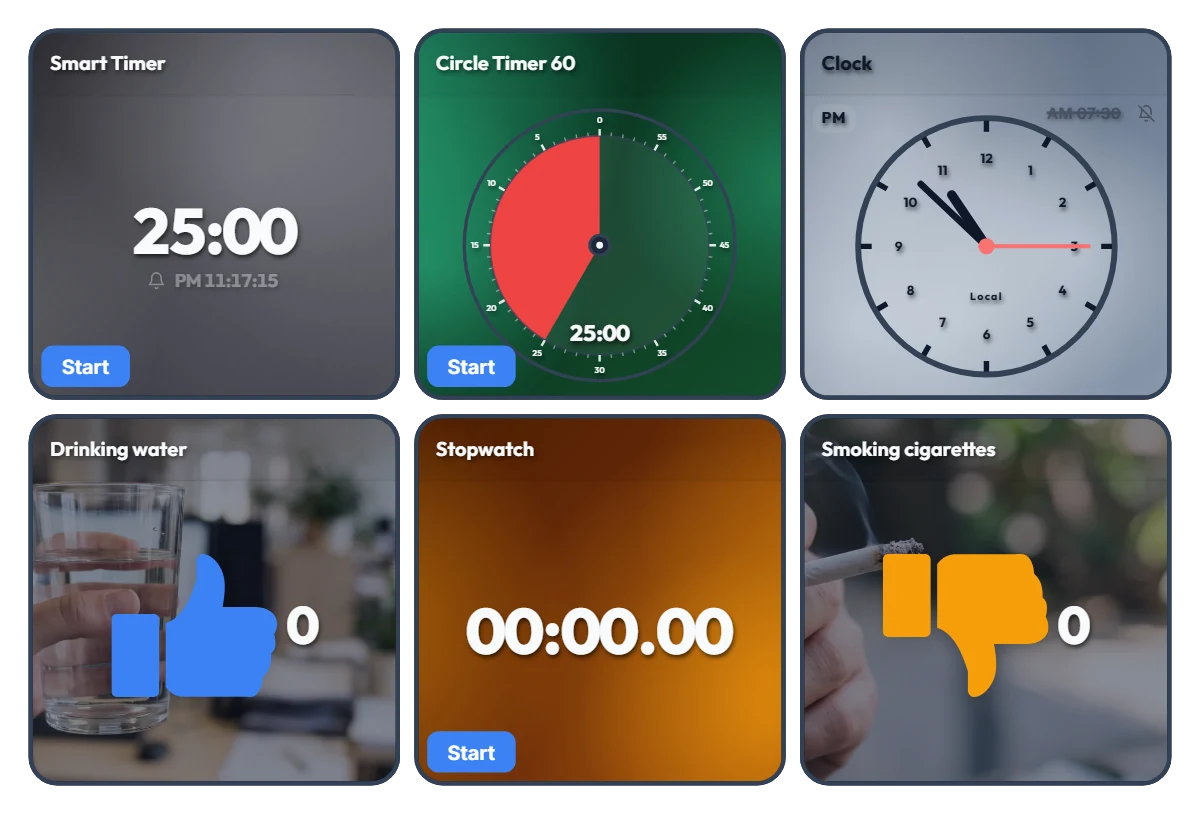
Track Work Hours, Water Intake & Cigarettes on One Screen! All-in-One Desk Dashboard
Tired of juggling separate timer tabs, stopwatch apps, and habit trackers while working or studying? Just keep this single dashboard open on the side of your monitor. This board is an "all-in-one desk control tower" featuring 6 independent tools on one screen—with no auto-linking between widgets. On the top row, timers and a clock keep your current flow and deadlines in check. On the bottom row, a stopwatch tracks your cumulative work hours while one-click counters let you intuitively log daily habits like drinking water (👍) and smoking cigarettes (👎). 📌 Everyday Scenarios Where This Shines • All-in-One Work Dashboard for Office & Remote Workers Measure your total daily work hours with the bottom stopwatch while checking your exact end time on the top Smart Timer. Log your water intake with the blue thumbs-up counter so you stay hydrated during deep work, and track cigarette counts with the orange counter to see your daily patterns at a glance. • Pure Focus Time + Wellness Tracker for Students & Freelancers Accumulate your actual, distraction-free study or work hours with the stopwatch, and use the Circle Timer to set strict time limits for practice tests or tasks. Tracking how many glasses of water you drink also helps keep your energy steady during long desk sessions. • Visual Habit Ledger: Good Habits (+) vs. Habits to Cut Back (-) With the Drinking water (👍) and Smoking cigarettes (👎) counters placed side by side, you get an immediate numeric contrast of your day. Seeing the numbers add up in real time makes it much easier to pace yourself consciously. • Desk Clock & Schedule Alarm in One Turn on the alarm in the top-right clock widget to stay on top of end-of-day wrap-ups, meetings, and break times without opening a separate alarm app. ⚙️ How Each Widget Works & How to Use Them Directly on Screen All 6 widgets operate independently right as they appear on your screen: • Smart Timer (Top Left): Click the bottom 'START' button to run it, or click the center numbers to set your desired duration. It displays the exact clock time when the timer will finish—great for managing deadlines. • Circle Timer 60 (Top Center): Click the bottom 'START' button to begin, and click the center of the circle to freely adjust the duration within 60 minutes. • Clock (Top Right): Click the bell icon (currently off) to toggle the alarm on or off, and click the alarm time ('AM 07:30') next to the bell to change when it rings. • Habit Counters – Drinking water / Smoking cigarettes (Bottom Left & Right): Click anywhere on the widget area to add +1. Hover your mouse over a widget to reveal a '-1' button in the bottom-left corner (handy for accidental clicks) and a 'Reset' button in the bottom-right corner. • Stopwatch (Bottom Center): Click the bottom 'START' button to freely track your total work hours or pure study time for the day. ❤️ If you found this helpful, tap the heart button and share how you used it in the comments—your tip could be a huge help to others!
Amelia Miller
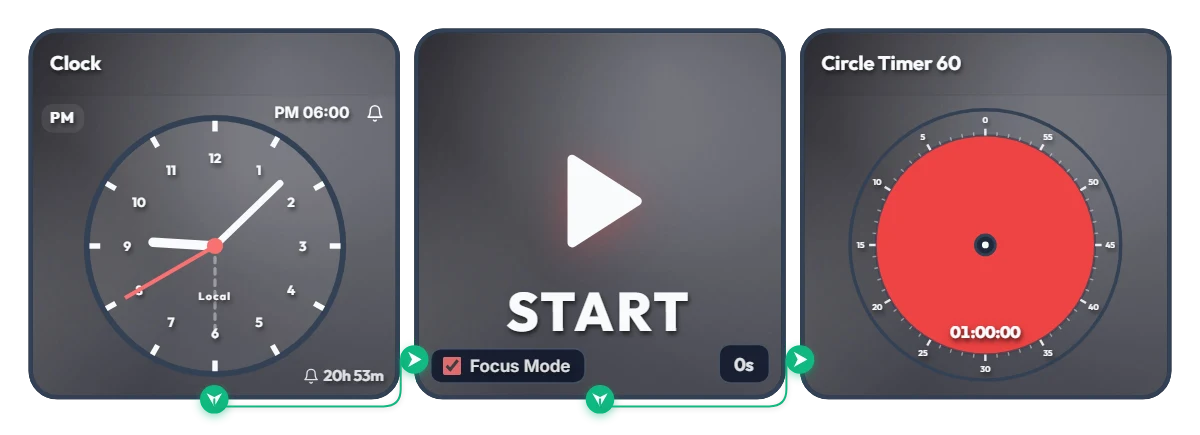
Keep Saying "I'll Start at 6 PM" and Putting It Off? Auto-Start 1-Hour Focus Timer
Ever tell yourself "I'll start right at 6:00 PM," only to lose an hour scrolling on your phone? Stop relying on willpower and let your screen flip the switch for you. This board is a scheduled automation routine. The moment your set time arrives (6:00 PM by default), Focus Mode cleanly hides the other widgets and expands the 60-minute circle timer to fill the entire board frame—starting the countdown immediately. Because it doesn't force your browser into full screen, it's ideal for keeping alongside your work window or on a second monitor. 📌 Everyday Scenarios Where This Shines • After-Work Evening Routine (PM 06:00 – 07:00) Beat post-work sluggishness. At 6:00 PM sharp, your board transforms into a bold red 60-minute timer, nudging you straight into reading, language learning, or a home workout without procrastinating. • Work-From-Home Morning Kickoff (AM 09:00) Struggling to transition from the couch to your desk? Change the alarm to 9:00 AM so your screen automatically switches into focus view and protects your first golden hour of deep work. • Evening Study & Exam Prep (PM 08:00) Overcome post-dinner fatigue with a clear visual rule: when the clock hits 8:00 PM, commit to one distraction-free hour at your desk. • 1-Hour Deadline Sprint Set the alarm one hour before a report or assignment is due. Watching the red visual gauge shrink keeps your focus locked in until the final second. ⚙️ How It Works & How to Customize Right on Screen When the Clock hits the scheduled time, the START widget activates Focus Mode—hiding the other widgets so the 60-minute circle timer fills the board and begins counting down right away. No complicated setup needed—just click directly on the board above to tailor it to your routine: • Change Alarm Time: Click 'PM 06:00' at the top right of the left Clock widget to set your preferred start time. • Set Prep Countdown: Click '0s' at the bottom right of the middle START widget to add a buffer delay of up to 59 seconds (great if you need a moment to sit down and get ready after the alarm goes off!). • Adjust Timer Duration: Click the center of the right Circle Timer widget to set any duration within 60 minutes that matches your focus stamina. ❤️ If you found this helpful, tap the heart button and share how you used it in the comments—your tip could be a huge help to others!
Amelia Miller